
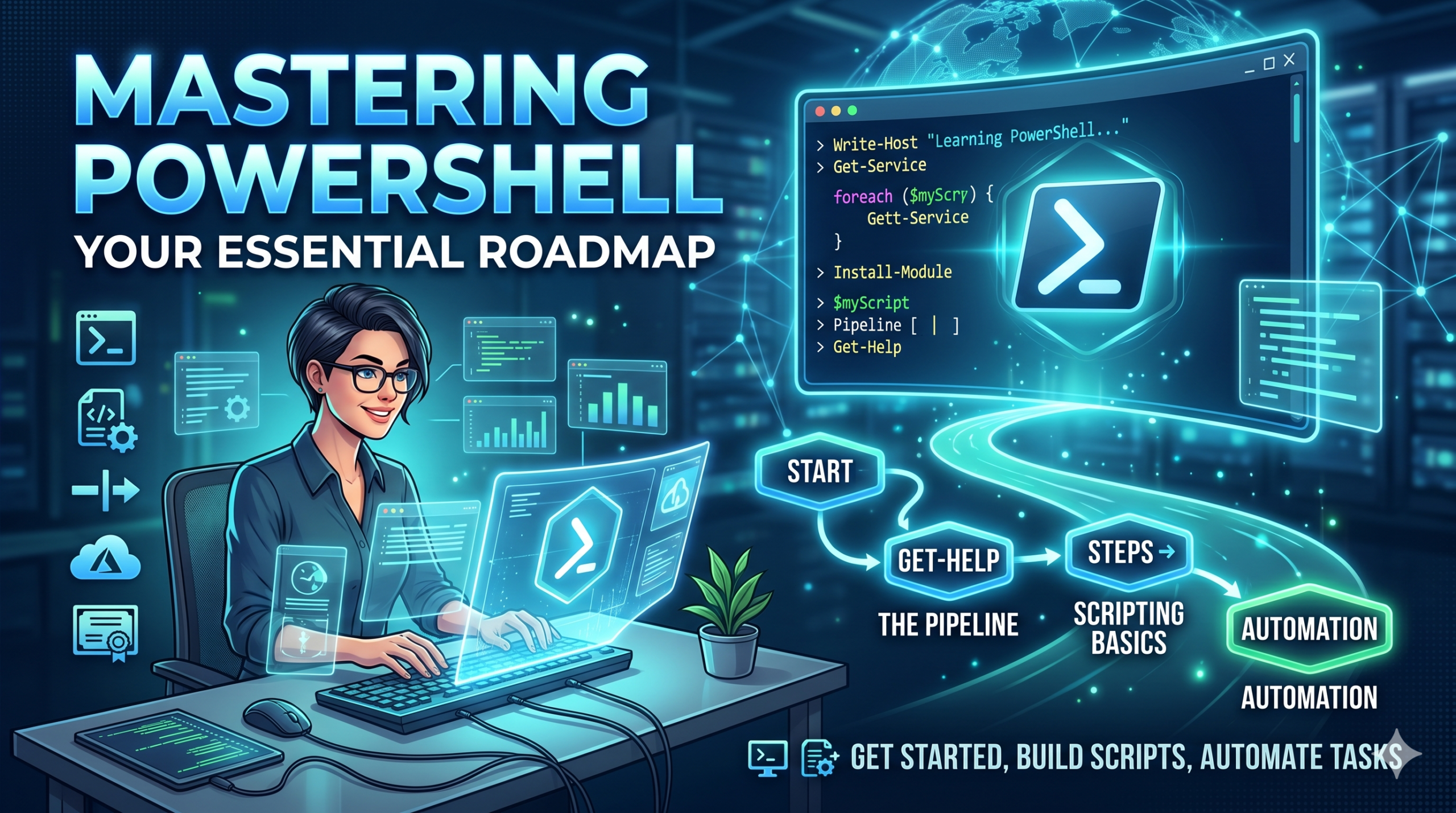
The Ultimate PowerShell
Learning Roadmap
Learn PowerShell from scratch. Dominate system automation, cloud operations, and write production-grade scripts with our guided interactive phases.
What makes PowerShell different?
Unlike traditional shells (like Bash, CMD, or Sh) that pass plain text, PowerShell is object-oriented. The output of a command isn't just characters on the screen; it is rich structured data with real property values, arrays, and complex system objects.
Phase 1: The Foundations & "The Big Three"
Before jumping straight to automated scripts, understanding the basics of terminal navigation and locating command syntaxes dynamically is key. PowerShell has an incredibly dynamic built-in command lookup scheme.
1. Set Up Your Shell
- • Run PowerShell or download the cross-platform PowerShell 7 Core (macOS/Linux).
- • Leverage VS Code combined with the official PowerShell Extension. Avoid using the obsolete, legacy ISE.
2. Master discovery cmdlets
Learn PowerShell using PowerShell by utilizing native exploration mechanisms.
No Internet Required"The Big Three" Essential Cmdlets:
Get-Command
Finds the specific cmdlets or functions you are searching for by name or wildcard pattern matching.
Get-Command *service*
Get-Help
Explains how to use a cmdlet, showing details of syntax, arguments, flags, and direct manual pages.
Get-Help Get-Process -Detailed
Get-Member
Reveals what properties and functional actions (methods) are bound to output objects.
Get-Process | Get-Member
Phase 2: Understanding the Pipeline
The pipeline element (|) is PowerShell’s defining mechanism. It feeds complete, typed object-level outputs from one execution block directly to the inputs of the next sequential action block.
Essential Pipeline Formatting Commands:
Where-Object
Filter results based on conditional blocks.
Select-Object
Extract specific data parameters or columns.
Sort-Object
Order columns ascending/descending cleanly.
Get-Process | Where-Object {$_.CPU -gt 5} | Sort-Object CPU -Descending | Select-Object Name, CPU, Id -First 5
Phase 3: Basic Scripting & Control Flow
Transitioning from simple terminal interactive commands to writing production scripts saved inside robust executable .ps1 scripting files.
Execution Policy Safety Guard
Standard client systems limit external script executions initially to defend against malicious actions. Set the policies securely via your terminal:
Use PowerShell loops to systematically interact with lists of objects.
# Declaring structural lists and looping objects $serviceList = Get-Service foreach ($service in $serviceList) { if ($service.Status -eq "Running") { Write-Output "Running: $($service.DisplayName)" } }
Keep in mind: PowerShell uses unique logical operator keywords like -eq, -ne, -gt instead of operators like == or >.
# Check variables using secure comparisons $value = 15 if ($value -gt 10) { Write-Host "Excellent! Variable is greater than 10." } else { Write-Host "Variable threshold not met." }
Phase 4: Functions, Modules, and Error Handling
Transition from a daily script runner to a complete toolmaker. Learn the design mechanics of robust, reusable modular workflows.
Write Functions
Wrap recurring automation algorithms into functional tools with dynamic inputs.
Advanced Binding
Leverage [CmdletBinding()] to inherit verbose logging, tracing, and parameter verification flags.
Handle Errors
Prevent system crashes on unexpected failures using native, nested try { } catch { } blocks.
try { # Force non-terminating errors to stop to execute catch cleanly $ErrorActionPreference = 'Stop' Get-Content -Path 'C:\nonexistent_file_path.txt' } catch { Write-Warning "Exception handled successfully: $_" }
Recommended Learning Resources
Cloud Knowledge: Practical PowerShell Tutorials
Need direct scripting examples? From core control structures and custom profiles to modern Azure AD/Microsoft Graph integrations, Cloud Knowledge provides rich real-world scenario guides to elevate your automation.
Industry Books
-
"Learn Windows PowerShell in a Month of Lunches"
The absolute standard bible for IT operations engineers starting from zero. -
"PowerShell in Action"
Excellent reference for programming practices and systems modeling.
Online Platforms
-
Microsoft Learn Docs
Official cmdlet repositories and product updates. -
PSKoans GitHub Repo
A fantastic interactive, test-driven sandbox environment to solve PowerShell syntax puzzles.
Practice Projects for Beginners
Bulk File Space-to-Underscore Renamer
# Set source folder directory path to query files $sourceDir = "C:\YourTargetDirectory" Get-ChildItem -Path $sourceDir -File | ForEach-Object { $newName = $_.Name -replace " ", "_" Rename-Item -Path $_.FullName -NewName $newName }
Quick System Health Reporter
# Gathers local disk free spaces and outputs to HTML $diskReport = Get-Volume -DriveLetter C | Select-Object DriveLetter, Size, SizeRemaining # View variables or format outputs directly to HTML file $diskReport | ConvertTo-Html | Out-File -FilePath "$HOME\Desktop\SystemReport.html" Write-Host "Check Desktop for your HTML SystemReport!" -ForegroundColor Green
Want to Master Advanced Automations?
Join our technical cloud and automation community directory. Bookmark our resources, stay up-to-date, and scale your workflows.
Get Started with Cloud Knowledge


Leave a Reply
