

Quick Answer
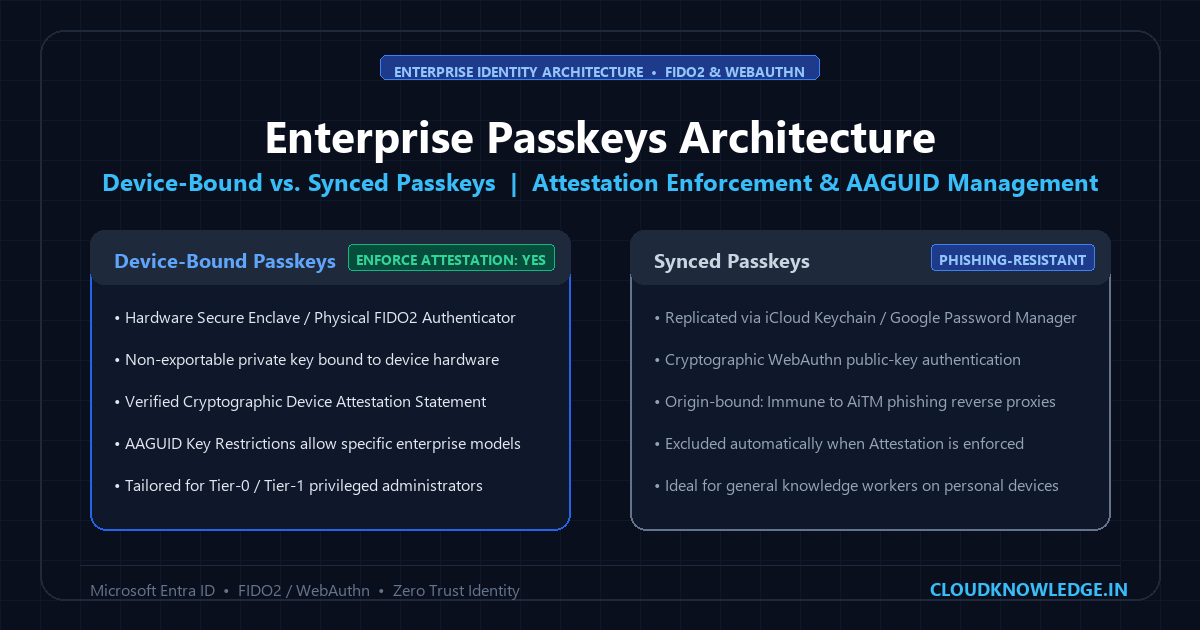
Passkeys deliver cryptographic, phishing-resistant authentication based on FIDO2/WebAuthn public-key standards. While synced passkeys provide strong phishing resistance across consumer clouds, enterprises requiring strict hardware token custody enforce device-bound passkeys by enabling ‘Enforce attestation’ in Microsoft Entra ID, while using AAGUID key restrictions to permit vetted hardware authenticator models.
This technical guide is part of our comprehensive Passwordless & Passkeys Architecture Hub, providing production architecture blueprints, step-by-step implementation standards, and real-world failure troubleshooting for modern enterprise identity teams.
Passkeys have become the defining identity security standard of 2026, delivering true phishing-resistant authentication by replacing vulnerable shared secrets with asymmetric public-key cryptography. However, deploying passkeys in an enterprise environment introduces a critical architectural dilemma: consumer-grade synced passkeys (synchronized across personal clouds via Apple iCloud Keychain or Google Password Manager) prioritize end-user convenience and device roaming, while Zero Trust enterprise compliance demands device-bound passkeys anchored to physical FIDO2 hardware security keys (such as YubiKeys or Titan Security Keys) or local hardware TPMs. In this engineering guide, we dissect the WebAuthn cryptographic ceremony, compare device-bound versus synced passkeys across 8 security parameters, and demonstrate how to enforce strict Authenticator Attestation GUID (AAGUID) filtering and Authentication Strengths across Microsoft Entra ID and Okta.
1. The Problem: Consumer Convenience vs. Enterprise Assurance in Passkey Deployments
A passkey is a cryptographic credential consisting of an asymmetric public-private keypair generated under the FIDO2 and W3C WebAuthn standards, where the private key never leaves the authenticator hardware and the public key is registered with the Relying Party (IdP). While consumer ecosystems celebrate seamless cloud synchronization, unmanaged synced passkeys introduce catastrophic blindspots for corporate security operations.
Security engineers face four primary challenges when introducing passkeys into an enterprise workforce:
- Shadow Cloud Synchronization: When employees create synced passkeys on unmanaged personal devices (e.g., personal iPhones or Android phones), the private key is replicated across their personal Apple ID or Google accounts. Corporate IT cannot revoke the physical private key upon employee offboarding.
- Lack of Cryptographic Attestation in Synced Passkeys: Consumer operating systems often conceal or sanitize authenticator attestation data to preserve end-user privacy. Consequently, an identity provider cannot verify whether a passkey resides in a FIPS 140-3 Level 3 hardware module or an unencrypted browser profile.
- Regulatory Non-Compliance: Critical infrastructure standards—including NIST SP 800-63B Authenticator Assurance Level 3 (AAL3), FedRAMP High, and PCI-DSS 4.0—strictly require single-device, hardware-bound cryptographic keys that cannot be extracted or cloned.
- AAGUID Spoofing Risks: Without verifying cryptographic attestation certificates during the WebAuthn registration ceremony, an adversary or rogue browser extension can submit arbitrary Authenticator Attestation GUIDs (AAGUIDs) to bypass tenant policy restrictions.
| Security Dimension | Device-Bound Passkeys (Hardware Security Key) | Synced Passkeys (iCloud / Google Cloud) | Legacy Passwords + Push MFA |
|---|---|---|---|
| Private Key Portability | Locked to secure hardware silicon (Non-extractable) | Synchronized via end-to-end encrypted cloud keychain | Stored in central directories / hashed databases |
| Phishing Resistance | 100% Cryptographic (Domain & Origin Bound) | 100% Cryptographic (Domain & Origin Bound) | 0% Vulnerable to AiTM proxies (Evilginx) |
| Enterprise Attestation | Supported (Batch / Enterprise Attestation Certificate) | None (Self-attestation or anonymized) | Not Applicable |
| NIST SP 800-63B Level | AAL3 (Highest Assurance) | AAL2 | AAL1 or AAL2 |
| Offboarding Revocation | Guaranteed (Hardware key physically returned or blocked) | Complex (Requires IdP credential revocation; key remains in cloud) | Account disablement in IdP |
| FIPS 140-2 / 140-3 Compliance | Yes (e.g., YubiKey 5 Series FIPS) | No | No |
2. The WebAuthn Registration & Authentication Ceremonies Under the Hood
To understand why passkeys cannot be phished by reverse proxies like Evilginx, we must analyze the browser WebAuthn ceremony. When a user authenticates, the Relying Party (e.g., Microsoft Entra ID or Okta) issues a cryptographically random challenge along with its rpId (Relying Party Identifier, such as login.microsoftonline.com).
// Client-side WebAuthn assertion request initiated by Relying Party
const publicKeyCredentialRequestOptions = {
    challenge: Uint8Array.from(serverChallenge, c => c.charCodeAt(0)),
    allowCredentials: [{
        id: Uint8Array.from(credentialId, c => c.charCodeAt(0)),
        type: 'public-key',
        transports: ['usb', 'nfc', 'ble', 'internal'],
    }],
    timeout: 60000,
    userVerification: 'required', // Mandates PIN or Biometric unlock on authenticator
    rpId: 'login.microsoftonline.com'
};

const assertion = await navigator.credentials.get({
    publicKey: publicKeyCredentialRequestOptions
});
The client browser collects the challenge and creates a clientDataJSON structure containing the exact origin (https://login.microsoftonline.com). It passes this to the authenticator over USB, NFC, or internal system bus. The authenticator hashes the clientDataJSON, combines it with the authenticator data, signs the payload using the private key, and returns the signature to the browser.
login.micros0ft-phish.com), the user’s browser automatically populates origin: "https://login.micros0ft-phish.com" in the clientDataJSON. The hardware authenticator signs this fake origin. When the proxy forwards the signature to the real Microsoft IdP, Microsoft validates the signature against its own expected origin (login.microsoftonline.com). Because the signature covers the origin string cryptographically, the validation fails instantly with a signature mismatch error.
3. Enforcing Device-Bound Passkeys & Hardware AAGUID Management in Microsoft Entra ID
To enforce device-bound hardware keys for Tier-0 administrators and privileged staff while managing organizational passkey policies, enterprise identity engineers must configure Authentication Method Policies in Microsoft Entra ID. Understanding the distinct roles of Attestation Enforcement and AAGUID Key Restrictions is essential:
Attestation Enforcement vs. AAGUID Key Restrictions
- Enforce Attestation (
IsAttestationEnforced = $true): This is the dedicated control in Microsoft Entra ID to allow only device-bound passkeys. Per Microsoft documentation: “If attestation is enabled, only device-bound passkeys are allowed; synced passkeys are excluded.” Synced passkeys (such as Apple iCloud Keychain or Google Password Manager) cannot emit cryptographic device attestation and are therefore prevented from registration when attestation is turned on. - AAGUID Key Restrictions (
KeyRestrictions): An Authenticator Attestation GUID (AAGUID) is a 128-bit identifier indicating the make and model of the hardware authenticator. AAGUID filtering allows administrators to enforce an allowlist or blocklist of specific enterprise-approved hardware models (such as specific YubiKey or Titan models). AAGUID lists are not used to block synced passkeys—synced passkeys are excluded by enabling attestation.
Common enterprise hardware AAGUIDs include:
2fc0579f-8113-47ea-b116-e802db535492: YubiKey 5 Series (NFC / USB-A / USB-C)ee03b63d-a006-4447-9759-994df502e48e: YubiKey 5 FIPS Seriesc13070e3-35b0-4e2d-9971-1d07d86f78ea: Feitian ePass FIDO2-NFC73bb0cd4-e502-496e-981b-0a066b0a1879: Google Titan Security Key
The following production PowerShell script updates the Microsoft Entra ID FIDO2 policy to enforce attestation (excluding synced passkeys) and whitelist vetted hardware keys:
# Connect to Microsoft Graph with Authentication Method Administrator privileges
Connect-MgGraph -Scopes "Policy.ReadWrite.AuthenticationMethod"

# Define approved enterprise hardware AAGUIDs (e.g. YubiKey 5 Series & YubiKey FIPS)
$ApprovedAAGUIDs = @(
    "2fc0579f-8113-47ea-b116-e802db535492", # YubiKey 5 NFC / Lightning
    "ee03b63d-a006-4447-9759-994df502e48e", # YubiKey 5 FIPS
    "c13070e3-35b0-4e2d-9971-1d07d86f78ea", # Feitian ePass FIDO2-NFC
    "73bb0cd4-e502-496e-981b-0a066b0a1879"  # Google Titan Security Key
)

# Fetch existing FIDO2 Authentication Method configuration
$Fido2Policy = Get-MgPolicyAuthenticationMethodPolicyAuthenticationMethodConfiguration -AuthenticationMethodConfigurationId "Fido2"

# Construct update payload: Enforce Attestation excludes synced passkeys; KeyRestrictions controls allowed hardware models
$PolicyUpdateParams = @{
    "@odata.type" = "#microsoft.graph.fido2AuthenticationMethodConfiguration"
    State = "enabled"
    IsAttestationEnforced = $true # Mandates cryptographic proof of device model; excludes synced passkeys
    KeyRestrictions = @{
        IsEnforced = $true
        EnforcementType = "allow" # Whitelist approach: only allow listed hardware AAGUIDs
        AaGuids = $ApprovedAAGUIDs
    }
}

# Apply hardened policy
Update-MgPolicyAuthenticationMethodPolicyAuthenticationMethodConfiguration `
    -AuthenticationMethodConfigurationId "Fido2" `
    -BodyParameter $PolicyUpdateParams

Write-Host "Successfully configured Entra ID: Attestation enforced (excluding synced passkeys) and AAGUID allowlist applied." -ForegroundColor Green
4. Configuring Phishing-Resistant Authentication Strengths in Conditional Access
Configuring the FIDO2 method policy alone does not force users to authenticate with a passkey when accessing critical applications. Identity architects must create a Conditional Access Policy bound to Microsoft Entra’s built-in Phishing-resistant MFA authentication strength.
# Verify built-in Phishing-resistant MFA authentication strength ID
$Strength = Get-MgIdentityConditionalAccessAuthenticationStrengthPolicy | Where-Object { $_.DisplayName -eq "Phishing-resistant MFA" }

Write-Host "Phishing-Resistant Policy ID: $($Strength.Id)"
Write-Host "Allowed Methods: $($Strength.AllowedCombinations -join ', ')"
# Output confirms: fido2, x509CertificateMultiFactor, windowsHelloForBusiness
When this policy is assigned to the Azure Management portal, AWS IAM Identity Center, or enterprise HR systems, users attempting to sign in with SMS, voice calls, or mobile push notifications are rejected with an explicit prompt requiring a FIDO2 hardware key, Windows Hello, or Certificate-Based Authentication.
5. Common Enterprise Pitfalls & Troubleshooting Gotchas
- Attestation Enforcement Breaking Non-Enterprise Keys: Setting
IsAttestationEnforced = $truerequires authenticators to send a signed attestation statement chaining up to a trusted root CA. If a vendor does not publish their attestation metadata to the FIDO Metadata Service (MDS), registration will fail with errorAADSTS500121. - The “PIN Change on Windows Lock Screen” Trap: FIDO2 security keys require a user PIN. If an employee forgets their hardware key PIN, Windows will lock the credential after 8 failed attempts. Recovery requires resetting the security key via Windows Settings or YubiKey Manager, which permanently purges all resident passkeys.
- Browser Isolation and VDI Breakage: Running non-persistent virtual desktop infrastructure (Citrix, VMware Horizon, Azure Virtual Desktop) without USB redirection drivers blocks WebAuthn passthrough. Ensure CTAP2 / WebAuthn redirection is explicitly enabled in the VDI client policy.
6. Production Hardening Checklist
- [ ] Audit existing FIDO2 registrations using Microsoft Graph API to review authenticator types and AAGUIDs.
- [ ] Whitelist vetted hardware vendor AAGUIDs and enable cryptographic attestation enforcement.
- [ ] Deploy Conditional Access policies requiring “Phishing-resistant MFA” for all Tier-0 and Tier-1 administrative roles.
- [ ] Establish a physical key recovery lifecycle (Dual-key issuance or temporary TAP issuance with strict 1-hour expiration).
- [ ] Configure Continuous Access Evaluation (CAE) to immediately terminate active user sessions upon hardware key revocation.
Frequently Asked Questions
What is the fundamental difference between device-bound and synced passkeys?
Both device-bound and synced passkeys provide cryptographic, phishing-resistant authentication because the WebAuthn private key signs an assertion bound to the legitimate domain origin. Device-bound passkeys store the private key inside a dedicated hardware secure enclave or physical security key (such as a YubiKey) and cannot be exported or synchronized. Synced passkeys replicate private keys across personal cloud keychains (such as Apple iCloud Keychain or Google Password Manager) for consumer convenience. Enterprises requiring hardware possession and physical custody enforce device-bound passkeys.
How does Microsoft Entra ID restrict passkey registration to device-bound passkeys and exclude synced passkeys?
Entra ID uses the ‘Enforce attestation’ setting in the FIDO2 (passkey) authentication method policy. When attestation is set to ‘Yes’ (IsAttestationEnforced = $true), Microsoft Entra ID verifies the cryptographic attestation statement emitted by the hardware authenticator during registration. Because synced passkeys do not provide hardware attestation, they are excluded, allowing only physical device-bound passkeys to be registered. AAGUID key restrictions are then used to specify which approved hardware models (such as specific YubiKey models) are permitted.
Can synced passkeys satisfy Phishing-Resistant MFA requirements in Microsoft Entra ID?
Yes. Microsoft Learn confirms that synced passkeys provide strong phishing resistance because they rely on FIDO2/WebAuthn public-key cryptography and cryptographic origin binding, making them impervious to credential harvesting and AiTM reverse proxies. However, when an enterprise requires device-bound hardware keys for regulatory compliance or token custody, administrators enable attestation enforcement in the passkey policy to restrict enrollment exclusively to device-bound hardware authenticators.
What recovery workflow is recommended if an employee loses a hardware security key?
Organizations should issue a Temporary Access Pass (TAP) with a short lifetime (e.g., 4 to 8 hours). The TAP allows the employee to sign in and self-enroll a replacement enterprise hardware security key without falling back to phishable legacy methods.
Why does FIDO2 cryptographic origin binding prevent adversary-in-the-middle (AiTM) reverse proxy attacks?
During the WebAuthn ceremony, the client browser computes a cryptographic signature over the real origin URL (e.g., login.microsoftonline.com). When an attacker proxies traffic through a phishing domain, the origin signature mismatch causes the identity provider to immediately reject the authentication assertion.
Official Architecture & Vendor References
- Microsoft Learn: Microsoft Entra Passkey (FIDO2) FAQ
- Microsoft Learn: Passwordless Authentication Options for Microsoft Entra ID
- Microsoft Learn: Enable Passkey (FIDO2) for Your Organization in Microsoft Entra
- Microsoft Learn: Conditional Access Grant Controls and Authentication Strength
- FIDO Alliance: Client to Authenticator Protocol (CTAP) Technical Specifications
- W3C: Web Authentication (WebAuthn) Level 3 Recommendation
Recommended Hardware & Reference Architecture Literature
Tested tools and authoritative documentation to implement the architectures covered in this lab: