


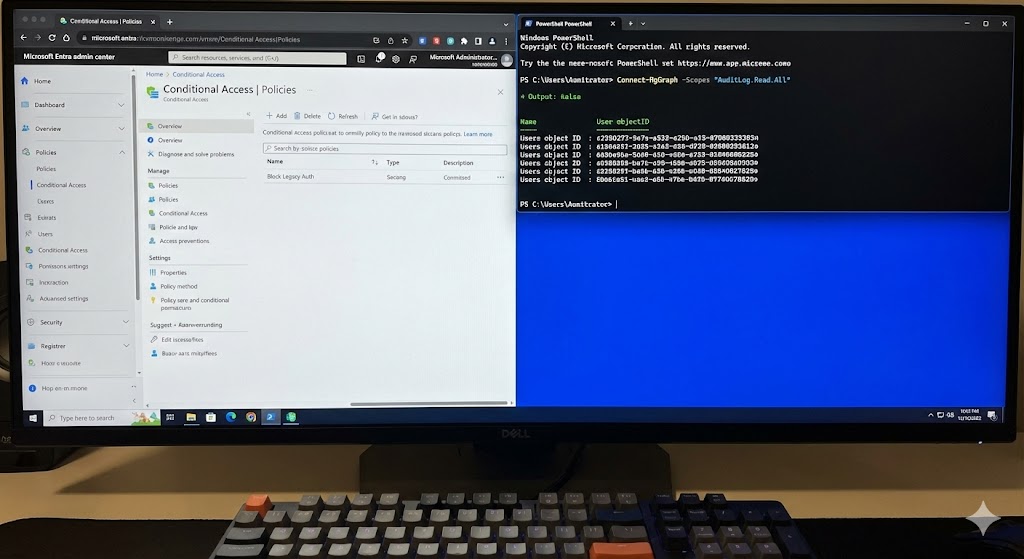
23 Microsoft Entra ID Troubleshooting Solutions: The Ultimate Guide
Microsoft Entra ID Troubleshooting is a critical skill for modern IT administrators. In today's complex cloud environments, identity is the new firewall. When authentication fails, business stops. This comprehensive guide covers 23 critical scenarios, providing deep technical solutions using both the Azure Portal GUI and advanced PowerShell/Graph API methods.
Whether you are dealing with Sign-in & Authentication Errors, synchronization failures, or Conditional Access blocks, this guide is your definitive resource.
Table of Contents
- 1. Users Can’t Sign In / Authentication Failures
- 2. Multi-Factor Authentication (MFA) Not Working
- 3. Conditional Access Policies Blocking Access
- 4. Federation / SSO Breaks After Certificate Expiry
- 5. Password Sync Failures (Entra Connect)
- 6. Users Not Provisioning Correctly
- 7. App Registration or Enterprise App Misconfiguration
- 8. Token Expiry & Refresh Token Issues
- 9. Access Reviews Fail to Complete
- 10. Privileged Identity Management (PIM) Activation Errors
- 11. License Assignment Problems
- 12. Directory Sync Errors
- 13. Group Membership Not Updating
- 14. Role-Based Access Control (RBAC) Misconfiguration
- 15. Risky Sign-In & Identity Protection Flags
- 16. MFA Registration Not Prompting
- 17. Device Registration / Hybrid Join Issues
- 18. Audit & Sign-In Logs Not Populating
- 19. Software & Conditional Access App Compatibility Problems
- 20. Security Defaults Blocking Legacy Auth
- 21. SSO Certificate Rollover Fails
- 22. Password Hash Sync Stops
- 23. Conditional Access Blocks VPN Users

1. Users Can’t Sign In / Authentication Failures
One of the most common tickets involves users unable to access their accounts. Microsoft Entra ID Troubleshooting often starts here. These failures can stem from wrong passwords, expired accounts, or risk-based blocks.
GUI Troubleshooting
- Navigate to the Microsoft Entra admin center.
- Go to Users > All users and select the affected user.
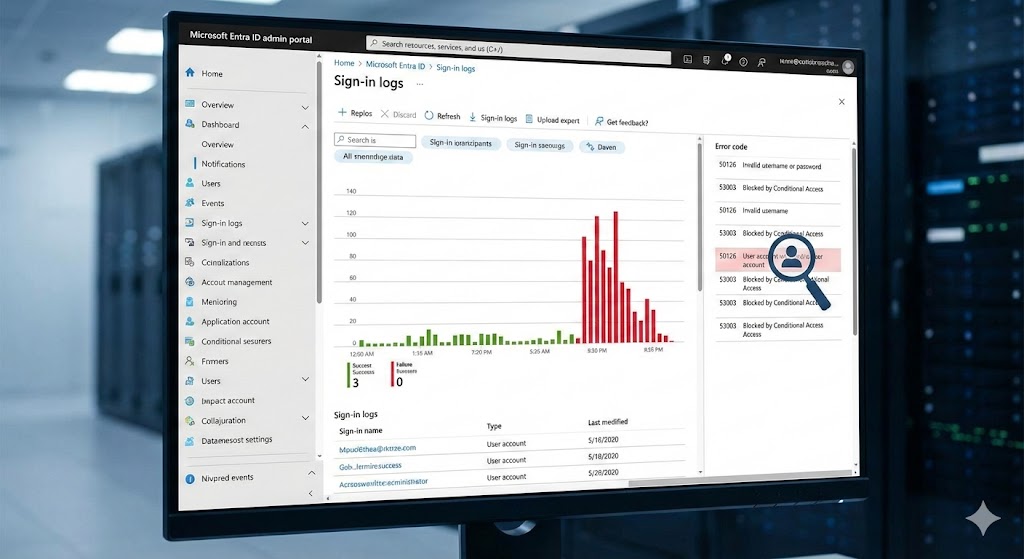
- Click on Sign-in logs. Review the status (Success/Failure).
- Click on a failed entry to see the "Sign-in error code" and "Failure reason".
- Check the User risk tab to see if the account is blocked due to risk.
PowerShell / Graph API Troubleshooting
Use the Microsoft Graph PowerShell SDK to query specific error details.
# Connect to Graph
Connect-MgGraph -Scopes "AuditLog.Read.All","User.Read.All"

# Get the last 5 failed sign-ins for a specific user
$UserEmail = "user@domain.com"
$UserId = (Get-MgUser -Filter "UserPrincipalName eq '$UserEmail'").Id

Get-MgAuditLogSignIn -Filter "userId eq '$UserId' and status/errorCode ne 0" -Top 5 | Select-Object CreatedDateTime, Status, IPAddress, AppDisplayName
Key Points
- Always check the specific Error Code (e.g., 50126 for invalid username/password).
- Verify if the account is locked out or disabled in on-premises AD if using hybrid sync.
FAQs
Q: What is error code 50058?
A: It usually means the session is invalid or the user is not signed in. It can often be ignored if silent token requests fail.
Q: How do I unlock a user?
A: In the portal, go to the user's profile and click "Reset password" or "Unblock sign-in" depending on the issue.
Official Docs: Sign-in logs in Microsoft Entra ID
2. Multi-Factor Authentication (MFA) Not Working
MFA issues are critical barriers. Troubleshooting MFA issues usually involves checking registration status or signal reception.
GUI Troubleshooting
- Go to Protection > Authentication methods > User registration details.
- Search for the user to confirm they are registered for MFA.
- If they are not receiving prompts, check Conditional Access policies that might be blocking the request or requiring a different strength.
- Advise the user to use the Microsoft Authenticator app over SMS for reliability.
PowerShell / Graph API Troubleshooting
# Check registered authentication methods
Get-MgUserAuthenticationMethod -UserId $UserId | Select-Object MethodType, PhoneNumber, DeviceTag

# Revoke MFA sessions to force re-registration or new token
Revoke-MgUserSignInSession -UserId $UserId
Key Points
- Ensure "Notify through mobile app" is selected if using Authenticator.
- Check if the user is in a "Risky User" state which might require a secure password change + MFA.
FAQs
Q: Can I bypass MFA for a user?
A: Yes, via Conditional Access exclusions or "One-time bypass" in the MFA service settings (legacy).
3. Conditional Access Policies Blocking Access
Misconfigured policies are a top cause of Microsoft Entra ID Troubleshooting scenarios. Learn more in our Conditional Access Deep Dive.
GUI Troubleshooting
- Go to Protection > Conditional Access > Diagnose and solve problems.
- Use the What If tool. Select the user, app, and location to simulate the login.
- The tool will show which policies apply and which grant controls (like MFA or Compliant Device) are required.
PowerShell / Graph API Troubleshooting
You can list all policies to audit configurations.
Get-MgIdentityConditionalAccessPolicy | Select-Object DisplayName, State, Conditions, GrantControls
Key Points
- Always test new policies in "Report-only" mode first.
- Look for "Block" controls that might be matching too broadly (e.g., blocking all locations except trusted ones).
4. Federation / SSO Breaks After Certificate Expiry
When the token signing certificate expires on ADFS or a third-party IdP, federation breaks. This is a severe outage scenario.
GUI Troubleshooting
- Check Microsoft Entra Connect Health for sync and ADFS alerts.
- In the external IdP (e.g., ADFS console), verify the certificate validity dates.
- Ensure the new certificate metadata has been imported into Entra ID.
PowerShell / Graph API Troubleshooting
# Update domain federation settings (if using MSOnline - legacy but often needed for federation)
Connect-MsolService
Get-MsolDomainFederationSettings -DomainName "yourdomain.com"

# To update a cert (example concept)
# Set-MsolDomainFederationSettings -DomainName "yourdomain.com" -SigningCertificate "NewCertData..."
Key Points
- Rollover should be planned weeks in advance.
- Entra ID must be aware of the new certificate Thumbprint.
5. Password Sync Failures (Entra Connect)
If on-prem password changes don't reflect in the cloud, Troubleshoot Microsoft Entra Synchronization Errors immediately.
GUI Troubleshooting
- Open the Synchronization Service Manager on the Connect server.
- Look for Export errors on the Microsoft Entra Connector.
- Check Event Viewer on the server for Event ID 611 or 6900.
PowerShell / Graph API Troubleshooting
# Force a password sync heartbeat
Invoke-ADSyncDiagnostics -PasswordSyncHeartbeat

# Run the troubleshooter
Invoke-ADSyncDiagnostics -PasswordSync
Key Points
- Password Hash Sync (PHS) runs every 2 minutes, distinct from the directory sync cycle (30 mins).
- Ensure the AD Connector account has "Replicate Directory Changes" permission.
6. Users Not Provisioning Correctly
When users don't appear in Entra ID, it is often a filtering or sync rule issue. See our guide on Microsoft Entra Connect Solutions.
GUI Troubleshooting
- Check Synchronization Rules Editor. Verify inbound and outbound rules.
- Ensure the user is in an OU that is selected for syncing.
- Check for "cloudFiltered" attribute set to True.
PowerShell / Graph API Troubleshooting
# Check if a user is valid for sync (Run on Connect Server)
CSExportAnalyzer.exe "C:\Path\To\Export.xml"

# Force Delta Sync
Start-ADSyncSyncCycle -PolicyType Delta
Key Points
- Object filtering can happen by Domain, OU, or Attribute.
- A "Metaverse" search in the Sync Service Manager is the best way to trace an object.
7. App Registration or Enterprise App Misconfiguration
Developers often face errors like "AADSTS50001: Resource not found".
GUI Troubleshooting
- Go to Identity > Applications > App registrations.
- Verify the Redirect URIs exactly match the application configuration.
- Check API permissions and ensure Admin Consent has been granted if required.
PowerShell / Graph API Troubleshooting
# Get Service Principal details
Get-MgServicePrincipal -Filter "DisplayName eq 'MyAppName'" | Select-Object AppId, ReplyUrls
Key Points
- Multi-tenant apps require specific configuration in the "Authentication" blade.
- Client Secrets usually have an expiry date—check this first if a working app stops.
8. Token Expiry & Refresh Token Issues
Users being forced to sign in too frequently indicates token lifetime issues. Refer to token & cookie problems.
GUI Troubleshooting
- Check Conditional Access "Session" controls.
- Verify if "Sign-in frequency" is configured to a short interval.
PowerShell / Graph API Troubleshooting
# Check token lifetime policies
Get-MgPolicyTokenLifetimePolicy
Key Points
- By default, refresh tokens last 90 days but are rolling.
- Password changes revoke refresh tokens immediately.
9. Access Reviews Fail to Complete
Identity Governance relies on Access Reviews. If they fail, compliance is at risk.
GUI Troubleshooting
- Go to Identity Governance > Access Reviews.
- Check the "Settings" of the review. Are mail notifications enabled?
- Verify if the reviewers have valid email addresses.
Key Points
- Reviewers must have a license (Entra ID P2 or Governance).
- If "Auto-apply" is disabled, changes won't happen even if the review completes.
10. Privileged Identity Management (PIM) Activation Errors
Securing admins is crucial. Learn about PIM vs PAM strategies.
GUI Troubleshooting
- Go to Identity Governance > Privileged Identity Management.
- Check "My Roles". If a role is not listed, you might not be eligible.
- If activation fails, check if an Approval is pending.
PowerShell / Graph API Troubleshooting
# Get PIM role eligibility
Get-MgIdentityGovernancePrivilegedAccessGroupEligibilitySchedule -Filter "principalId eq '$UserId'"
Key Points
- PIM requires MFA by default for activation.
- Global Admins can manage PIM settings for all roles.
11. License Assignment Problems
Group-based licensing is powerful but can error out.
GUI Troubleshooting
- Go to Billing > Licenses > All products.
- Click on a product and select Licensed groups.
- Look for "Error" status next to any group. Click it to see details (e.g., "Not enough licenses").
PowerShell / Graph API Troubleshooting
# Check for user license errors
Get-MgUser -UserId $UserId -Property LicenseAssignmentStates | Select-Object -ExpandProperty LicenseAssignmentStates
Key Points
- Conflicting service plans (e.g., Exchange Online P1 vs P2) can cause assignment failures.
- Ensure usage location is set for the user.
12. Directory Sync Errors
Common errors like "Duplicate Attribute". See Troubleshoot Entra Synchronization Errors.
GUI Troubleshooting
- The Microsoft Entra Connect Health portal provides a friendly report of sync errors.
- Click on the error to see the conflicting objects (Existing vs New).
PowerShell / Graph API Troubleshooting
Use the specific troubleshooting tool for attribute uniqueness.
# Identify duplicate UPNs
Get-MgUser -Filter "UserPrincipalName eq 'duplicate@domain.com'"
Key Points
- AttributeValueMustBeUnique is the most common error.
- Often caused by two users having the same ProxyAddress (SMTP).
13. Group Membership Not Updating
Dynamic groups or synced groups may not reflect changes immediately.
GUI Troubleshooting
- Go to the Group in the portal.
- Check Dynamic membership processing status. It might say "Processing" or "Update paused".
- Validate the dynamic rule syntax.
Key Points
- Dynamic groups can take up to 24 hours to populate in large tenants.
- Synced groups (from on-prem) must be updated in on-prem AD, not the cloud.
14. Role-Based Access Control (RBAC) Misconfiguration
Users having too much or too little access.
GUI Troubleshooting
- Go to Roles and administrators.
- Check "Active assignments" vs "Eligible assignments" (PIM).
- Verify the scope of the assignment (Directory level vs Administrative Unit).
15. Risky Sign-In & Identity Protection Flags
Entra ID Protection blocks users based on heuristics.
GUI Troubleshooting
- Go to Protection > Identity Protection > Risky users.
- Review the risk level (Low, Medium, High).
- You can "Dismiss user risk" if it is a false positive.
PowerShell / Graph API Troubleshooting
# Get risky users
Get-MgRiskDetection -Filter "riskLevel eq 'high'"
16. MFA Registration Not Prompting
If the registration campaign is not appearing.
GUI Troubleshooting
- Check Protection > Authentication methods > Registration campaign.
- Ensure the user is included in the target group.
- Verify the "Snooze" duration hasn't just silenced the prompt.
17. Device Registration / Hybrid Join Issues
Devices failing to join are a headache for Intune onboarding. See Entra Connect Solutions.
GUI Troubleshooting
- On the client, run `dsregcmd /status`.
- Look for `AzureAdJoined : YES` or `DomainJoined : YES`.
- In Entra Portal, check Devices > All devices.
PowerShell / Graph API Troubleshooting
# Get device details
Get-MgDevice -Filter "displayName eq 'Laptop-01'"
18. Audit & Sign-In Logs Not Populating
If logs are missing, you cannot troubleshoot.
GUI Troubleshooting
- Check Diagnostic settings to ensure logs are being sent to Log Analytics (if configured).
- Note: There is a latency (15 mins to 24 hours) depending on the report type.
19. Software & Conditional Access App Compatibility Problems
Legacy apps may not support modern auth (OIDC/SAML).
Key Points
- Ensure the app uses MSAL (Microsoft Authentication Library).
- If the app uses a web view, ensure it supports device compliance claims.
20. Security Defaults Blocking Legacy Auth
"Security Defaults" is a baseline setting that blocks SMTP, IMAP, etc.
GUI Troubleshooting
- Go to Properties > Manage security defaults.
- If enabled, legacy auth is blocked tenant-wide.
- Solution: Disable Security Defaults and use Conditional Access for granular control.
21. SSO Certificate Rollover Fails
Specifically for SAML apps.
GUI Troubleshooting
- Go to Enterprise Applications > Select App > Single sign-on.
- Under "SAML Signing Certificate", check the status (Active).
- Create a new cert, activate it, and immediately upload the metadata to the Service Provider (App).
22. Password Hash Sync Stops
Specific PHS troubleshooting.
PowerShell
# On the AD Connect Server
Import-Module ADSync
$adConnector = Get-ADSyncConnector | Where-Object {$_.Type -eq "AD"}
Get-ADSyncConnector -Name $adConnector.Name | Select-Object -ExpandProperty PasswordHashSyncConfiguration
Ensure `Enabled` is True.
23. Conditional Access Blocks VPN Users
VPNs often present a new IP. If you have "Named Locations" restricted, VPNs fail.
GUI Troubleshooting
- Add the VPN public IP range to Named Locations as "Trusted".
- Update Conditional Access to exclude this Trusted Location if necessary, or require MFA.
Conclusion
Mastering Microsoft Entra ID Troubleshooting requires a blend of checking the Official Microsoft Documentation and using community resources like Cloud Knowledge. By mastering the GUI for quick checks and PowerShell for bulk operations, you can resolve 99% of identity issues efficiently.



Leave a Reply