Introduction to Azure and Microsoft Stack Integration
Organizations that run Microsoft technologies—Active Directory, Windows Server, Exchange, and Microsoft 365—get the most operational and security value when they integrate those on-prem investments with Azure. Integration provides a single identity surface, unified security controls, centralized monitoring, and migration paths that reduce risk and cost.
Why read this guide? This article helps architects, sysadmins, and platform teams plan hybrid identity, modernize file services, optimize Windows Server workloads on Azure, and secure Microsoft 365 using Azure-native controls.
The Microsoft Ecosystem — Core Components
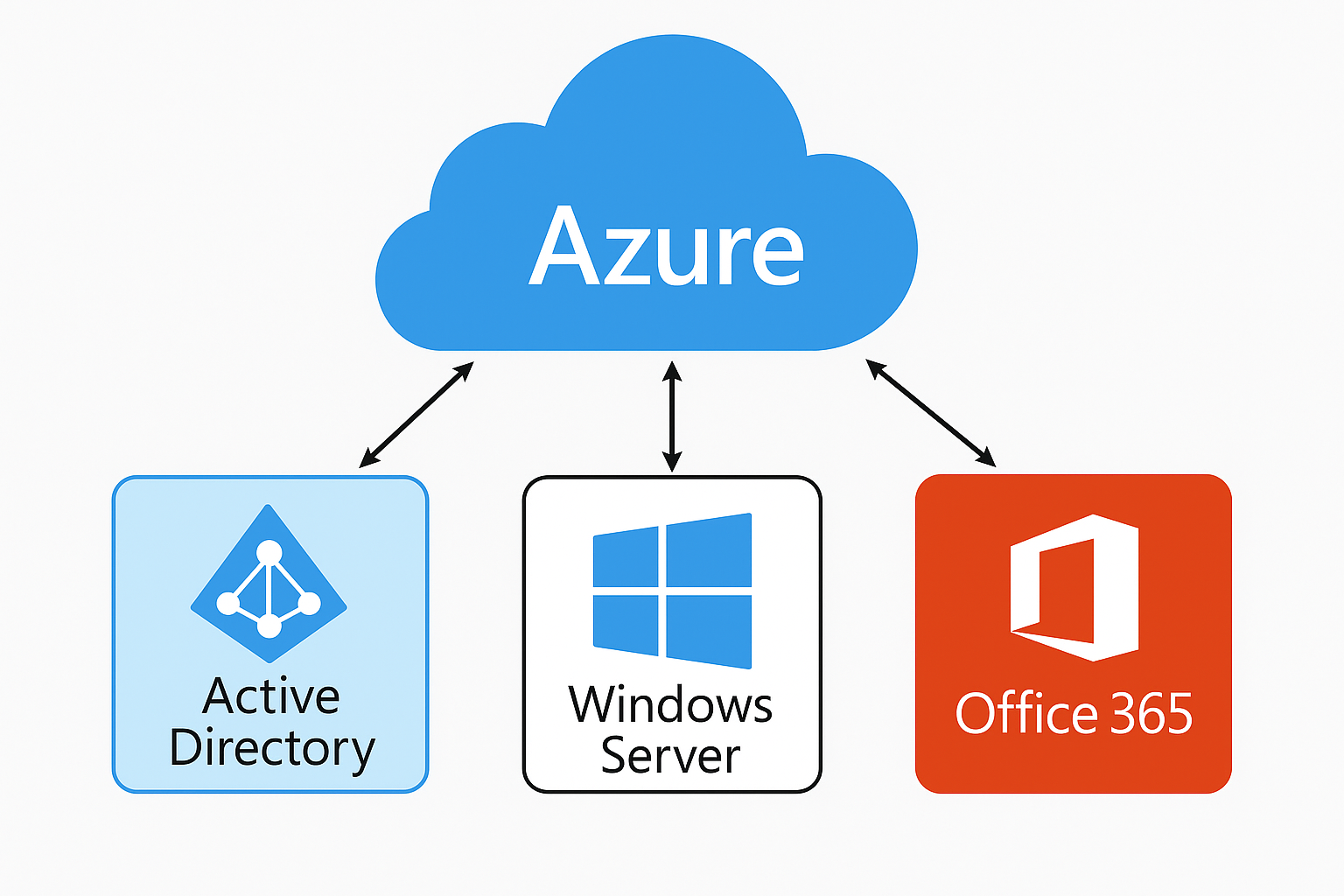
Key components you’ll integrate and why they matter for hybrid operations:
- Azure — IaaS and PaaS platform for scale, managed services, and global regions.
- Active Directory / Microsoft Entra ID — Identity and access platform unifying workforce and apps.
- Windows Server — On-prem compute, directory controllers, and legacy workloads.
- Office 365 / Microsoft 365 — Productivity suite integrated with cloud identity.
Integration provides consistent identity (single sign-on), improved manageability (Intune, Autopilot), and consolidated security (Conditional Access, Defender for Cloud).
Azure Active Directory (Microsoft Entra ID): The Cloud Identity Layer
Microsoft Entra ID (formerly Azure AD) is the cloud identity and access management (IAM) platform that handles authentication, authorization, application management, and security controls for cloud and hybrid applications. It is the identity backbone for Microsoft 365, Azure services, and thousands of SaaS apps.
Cloud vs On-premises AD: When to use which
On-premises Active Directory Domain Services (AD DS) remains essential for legacy Kerberos/NTLM-based applications and traditional domain-joined Windows servers. Microsoft Entra ID provides modern authentication, conditional access, and identity protection for cloud and hybrid scenarios. Use both in hybrid models to get the advantages of each.
Integrating Azure AD with On-Premises Active Directory
Azure AD Connect is the primary tool for synchronizing users, groups, and (optionally) password data between your on-prem AD and Microsoft Entra ID. It supports multiple hybrid identity models:
- Cloud-only — Identities are created and managed in Entra ID only.
- Password Hash Synchronization (PHS) — Syncs a hash of the on-prem password to Entra ID for cloud sign-ins.
- Pass-through Authentication (PTA) — Validates passwords against on-prem AD using secure agents without syncing password hashes.
- Federation (AD FS) — Full federation for complex SSO scenarios and claims-based auth.
Choose the model that balances security, availability, and operational complexity for your environment. Azure AD Connect documentation and guidance explain PHS vs PTA tradeoffs and best practices for availability and security.
Benefits of Hybrid Identity
- Single identity for on-prem and cloud apps;
- Simpler user lifecycle management;
- Seamless SSO into Microsoft 365 and many SaaS apps;
- Ability to apply Conditional Access and MFA centrally.
Azure AD Domain Services — Managed Domain in Azure
Azure AD Domain Services (AAD DS) is a managed domain in Azure that offers Kerberos, NTLM, LDAP, and Group Policy support without requiring you to run domain controllers in IaaS VMs. It’s perfect when you lift-and-shift legacy VMs to Azure that require domain-join or when you want LDAP/kerberos for legacy apps in the cloud without full DC management.
Use cases include: migrating legacy applications to Azure VMs, enabling SMB/LDAP workloads, and supporting domain-join for Azure virtual machines where you don’t want to maintain AD infrastructure yourself.
Windows Server Integration with Azure
Modern hybrid management options let you keep Windows Server workloads on-prem and extend management to Azure:
- Azure Arc — Bring on-prem Windows Servers (and other resources) into Azure’s control plane for consistent policy, inventory, and governance;
- Azure Automanage — Simplify operations by applying recommended VM best practices for security and management;
- Azure Backup, Azure Monitor, and Log Analytics provide cloud-native backup, alerting, and telemetry for Windows Servers.
These solutions reduce the management gap between on-prem and cloud while enabling centralized monitoring and governance.
Azure Hybrid Benefit for Windows Server — Save Licensing Costs
Azure Hybrid Benefit allows organizations with qualifying Windows Server licenses and active Software Assurance (or subscription licenses) to reduce compute costs when moving to Azure VMs. Savings of up to ~40% are commonly quoted when you apply existing licenses instead of paying Azure full rates for Windows VMs. Detailed eligibility and configuration options are documented by Microsoft. :
How to enable
- Confirm license eligibility (SA or qualifying subscription)
- Assign licenses to the Azure subscription or VM during provisioning
- Use Cost Management tools and Azure Advisor to validate savings and usage
Azure Site Recovery & Azure Backup — DR and Protection for Windows Server
Azure Backup integrates with Windows Server Backup and System Center Data Protection Manager (DPM) to provide cloud backups. Azure Site Recovery (ASR) enables orchestrated failover of VMs to Azure with automatic replication and recovery plans. This approach lowers RTO/RPO and simplifies disaster recovery testing.
Use ASR for machine-level replication and automated failover; use Azure Backup for long-term retention and restore scenarios.
Integrating Microsoft 365 with Azure AD
Microsoft 365 relies on Microsoft Entra ID for identity and access. When you enable hybrid identity, users get SSO into Outlook, Teams, SharePoint, and other Microsoft 365 services with the same credentials they use on-prem. This is the foundation for conditional access, data protection, and endpoint compliance across productivity apps.
To maximize security, complement SSO with Conditional Access policies and MFA to protect mailbox and SharePoint access.
Conditional Access & MFA — Secure the Hybrid Identity Perimeter
Conditional Access allows administrators to create rules that grant or block access based on user, device, location, risk signals, and app sensitivity. Pair Conditional Access with Multi-Factor Authentication (MFA) to raise the security posture for Microsoft 365 and hybrid sign-ins. Device compliance from Intune can be used as a signal in policies, enabling requirement of compliant devices for sensitive resources.
Microsoft Intune & Endpoint Manager — Unified Endpoint Management
Intune integrates with Entra ID to manage devices (Windows, macOS, iOS, Android). With Azure AD and Intune combined you can implement Conditional Access for managed devices, enforce encryption and patch baseline, and centrally deploy configuration profiles and apps.
Intune + Autopilot simplifies provisioning of Windows 10/11 devices while maintaining corporate security defaults enforced by Conditional Access.
Azure Files — Cloud SMB Shares with AD Authentication
Azure Files provides fully managed SMB shares in the cloud. You can enable identity-based authentication using on-prem AD DS or Azure AD Domain Services so that users can authenticate with their AD credentials and retain NTFS-style permission controls. This makes Azure Files a first-class replacement for Windows file servers in many migration scenarios.
Azure File Sync
Azure File Sync lets you centralize file shares in Azure while keeping a local cache on on-prem Windows Servers for fast local access. It’s useful for consolidating file servers, enabling cloud tiering, and simplifying backups.
Deployment steps: create a storage account + file share, deploy the Azure File Sync agent on servers, register servers, and create sync groups. The official deployment guide covers these steps.
Azure Networking — VPN, ExpressRoute & Hybrid DNS
Common networking patterns to integrate Windows Server environments with Azure:
- Site-to-Site VPN — Secure IPsec tunnels for smaller environments;
- ExpressRoute — Private, higher-throughput connectivity for large-scale hybrid deployments;
- Azure DNS & Hybrid name resolution — Use conditional forwarders or Azure DNS Private Resolver for consistent name resolution between on-prem and Azure.
For AD replication and domain controller placement, ensure low-latency connectivity and appropriate AD placement strategy to avoid authentication delays.
Monitoring & Telemetry — Azure Monitor, Log Analytics, and SCOM Integration
Azure Monitor and Log Analytics provide centralized logging, metrics, and alerting for both Azure and on-prem resources. You can integrate System Center Operations Manager (SCOM) with Azure Monitor to bridge historic monitoring coverage into cloud-native telemetry stores, enabling advanced analytics and threat detection.
Security & Compliance — Defender for Cloud and Sentinel
Defender for Cloud (formerly Azure Security Center) and Azure Sentinel (SIEM) provide threat protection and detection across hybrid resources. Key capabilities include vulnerability assessment, policy management, threat detection, and automated incident response. Integrate identity signals from Entra ID with Sentinel to correlate risky sign-ins and user behavior with infrastructure alerts.
Azure Arc — Extend Azure Management to On-Prem Resources
Azure Arc enables you to manage Windows Servers, SQL Server instances, and Kubernetes clusters in a consistent way — using Azure Policy, tags, and resource inventory in the Azure control plane. It’s particularly powerful when you need consistent governance and policy enforcement across disparate environments.
Identity Federation: AD FS, OAuth, SAML & Modern Auth
For enterprises that require claims-based SSO, AD FS or third-party identity providers can be federated with Entra ID. Modern protocols (OAuth2/OpenID Connect, SAML) are supported across Azure and Microsoft 365 and are the preferred approach for new applications. Federation continues to be useful where on-prem trust boundaries and token issuance behaviors are tightly controlled.
Licensing & Cost Optimization
Licensing covers Microsoft 365, Windows Server, and Azure resource costs. Use Azure Hybrid Benefit to leverage existing Windows Server licenses for cost savings. For overall visibility, use Azure Cost Management and Azure Advisor to identify idle VMs, right-size compute, and plan reserved instances or savings plans where appropriate. Microsoft documentation provides the official guidance for Hybrid Benefit configuration and managed options.
Practical tips
- Audit current license entitlements before migration;
- Estimate licensing impact using Azure pricing calculator;
- Use central license assignments for enterprise accounts;
- Consider Reserved Instances for predictable VM workloads.
Real-World Use Cases
Scenario 1 — Enterprise hybrid identity
Large enterprise uses Azure AD Connect with Password Hash Sync and Conditional Access to secure Microsoft 365. On-prem AD remains source of authority for device join and GPOs.
Scenario 2 — Windows Server lift-and-shift
VMs are moved to Azure VMs, leverage Azure Hybrid Benefit and Azure Backup, and use Azure Files for central file shares with identity-based access enforced by AD DS authentication in Azure.
Scenario 3 — File server consolidation
Use Azure File Sync to centralize file data to Azure, keep local cache servers for users, and reduce backup footprint using Azure Backup and cloud-tiering.
Scenario 4 — Modern device management
Combine Intune + Autopilot with Conditional Access to require compliant devices for sensitive apps and to enable passwordless authentication.
Best Practices for Azure–Microsoft Stack Integration
- Plan hybrid identity carefully: decide the source of authority for user accounts and a long-term model (cloud-first vs hybrid).
- Enable monitoring & logging: centralize logs in Log Analytics and use Sentinel for detection.
- Enforce MFA & Conditional Access: mandate MFA for admin and privileged users; use risk-based policies for others.
- Validate Azure AD Connect health: use Azure AD Connect Health or monitoring to maintain sync integrity.
- Leverage Azure Hybrid Benefit: to reduce compute licensing costs when migrating Windows Server.
- Use Azure Files + AD authentication: for granular, NTFS-like permissioning for cloud SMB shares.
- Test DR runbooks: use ASR to perform non-disruptive failover tests.
- Govern with Azure Policy & Arc: ensure compliance and consistent configuration across environments.
Bonus: Diagrams, Tables & Step-by-step Mini Guide
Hybrid Identity Architecture (diagram)
High-level architecture: On-prem AD DS ⇄ Azure AD Connect ⇄ Microsoft Entra ID → Microsoft 365 & SaaS apps. You can add Azure AD Domain Services and Azure Files to provide AD-protected shares in Azure.
Integration Benefits Table
| Benefit |
What you get |
| Productivity |
SSO across Microsoft 365, Azure apps and many SaaS apps |
| Security |
Conditional Access, MFA, identity protection and SIEM integration |
| Cost |
Azure Hybrid Benefit, central backup, and tiered file storage |
| Manageability |
Azure Arc, Intune and centralized monitoring |
Mini-guide: Set up Azure AD Connect (high-level)
- Assess on-prem AD for schema, UPNs, and duplicate attributes.
- Choose sign-in method: PHS, PTA or Federation.
- Install Azure AD Connect on a dedicated server (follow Microsoft guidance).
- Configure OU filtering, attribute sync rules, and password sync options.
- Monitor using Azure AD Connect Health and set up alerts.



Can you be more specific about the content of your article? After reading it, I still have some doubts. Hope you can help me. https://accounts.binance.com/register-person?ref=IXBIAFVY