

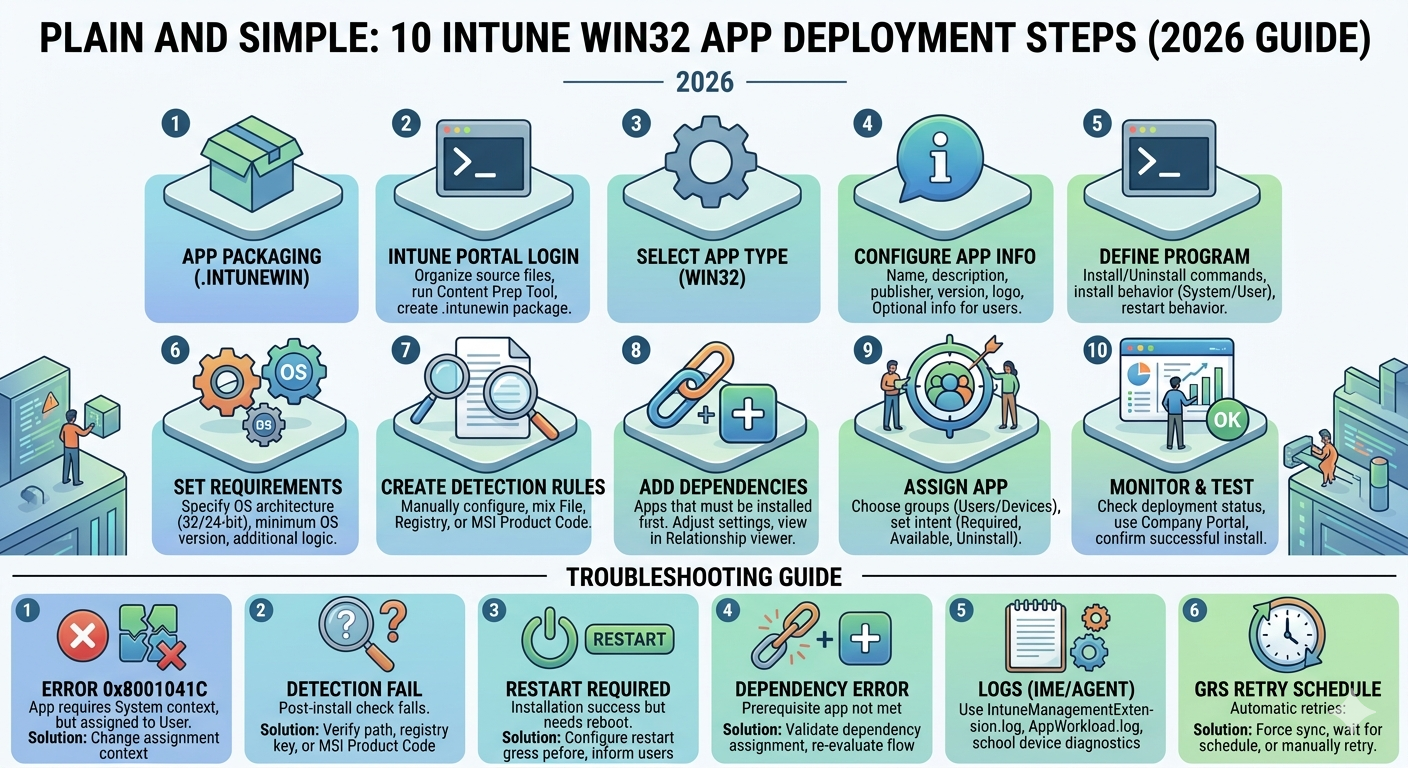
🔥 Intune Win32 App Deployment: Ultimate 2026 Guide (Step-by-Step + Troubleshooting)
Focus Keyword: Intune Win32 App Deployment
Intune Win32 App Deployment is the backbone of modern endpoint management using Microsoft Intune. If you're managing enterprise applications, mastering this process ensures secure, scalable, and automated deployments.
📌 What is Intune Win32 App Deployment?
Intune Win32 App Deployment allows IT administrators to deploy traditional Windows applications (.exe, .msi) using the Intune Management Extension (IME).
🔑 Why It Matters
- Centralized application control
- Silent and automated installs
- Advanced detection rules
- Enterprise-grade scalability
❓ FAQs
Q: What is Win32 app in Intune?
A: A packaged application (.intunewin) deployed via Intune.
🖼️ Intune Deployment Dashboard
🚀 Step 1: Prepare .intunewin Package
Before deployment, applications must be packaged using the Win32 Content Prep Tool.
Command Example
IntuneWinAppUtil.exe -c C:\App -s setup.exe -o C:\Output
🔑 Key Points
- Keep source folder clean
- Include all dependencies
- Test locally first
❓ FAQs
Q: Can I deploy EXE directly?
A: No, must convert to .intunewin.
⚙️ Step 2: Add App in Intune
Navigate to: Apps → Windows → Add → Win32 App
🔑 Best Practices
- Use proper naming convention
- Add version in title
- Use accurate publisher info
💻 Step 3: Program Configuration
Install Command
msiexec /i app.msi /qn
PowerShell Script Example
Start-Process "setup.exe" -ArgumentList "/silent" -Wait
🔑 Key Points
- Always silent install
- Use SYSTEM context
- Validate exit codes
📊 Step 4: Detection Rules (Critical)
Detection rules ensure Intune confirms successful installation.
Types
- MSI (Recommended)
- File detection
- Registry detection
PowerShell Detection
Get-ItemProperty HKLM:\Software\Microsoft\Windows\CurrentVersion\Uninstall\*
🔑 Key Insight
Incorrect detection rules are the #1 cause of deployment failure.
📦 Step 5: Requirements
- OS Version
- Architecture
🎯 Step 6: Assignments
- Required (auto install)
- Available (optional)
- Uninstall
🚀 Step 7: Deployment
Deployment occurs automatically within 24 hours based on sync cycles.
🛠️ Troubleshooting Intune Win32 App Deployment
Check Logs
C:\ProgramData\Microsoft\IntuneManagementExtension\Logs
PowerShell Log Read
Get-Content "C:\ProgramData\Microsoft\IntuneManagementExtension\Logs\IntuneManagementExtension.log"
Error Table
| Error | Cause | Fix |
|---|---|---|
| 0x87D1041C | Detection issue | Fix rule |
| Install failed | Wrong command | Correct script |
📡 Microsoft Graph API Automation
GET https://graph.microsoft.com/v1.0/deviceAppManagement/mobileApps
Use Cases
- Automate deployments
- Monitor apps
🔐 Security Best Practices
- Use signed scripts
- Limit privileges
- Monitor installations
🔗 Internal Resources
🌐 External Resources
🔥 Intune Detection Rules Explained (2026 Deep Dive) – MSI, File, Registry & PowerShell
Focus Keyword: Intune Detection Rules
Intune Detection Rules are the most critical component of Intune Win32 App Deployment. They determine whether an application is successfully installed on a device.
📌 What Are Intune Detection Rules?
Detection rules are conditions used by Intune to verify if an application exists on a device. If detection fails, Intune assumes installation failed—even if the app is actually installed.
🔑 Key Concept
No detection = No success. Even perfect installation commands fail if detection rules are incorrect.
🖼️ Detection Rules Interface
🚀 Types of Intune Detection Rules
1️⃣ MSI Detection (Recommended)
MSI detection uses product codes embedded in MSI packages.
Example
{12345678-ABCD-1234-ABCD-1234567890AB}
Advantages
- Most reliable
- Auto-detected by Intune
- Version-aware
Disadvantages
- Only works with MSI
FAQ
Q: Where to find MSI product code?
A: Registry or PowerShell.
2️⃣ File Detection
Checks existence of a file after installation.
Example
C:\Program Files\App\app.exe
Advantages
- Works with EXE apps
- Simple to configure
Disadvantages
- File may exist even if app broken
- Version mismatch risk
3️⃣ Registry Detection
Checks registry entries created during installation.
Example
HKLM\Software\App
Advantages
- Powerful and flexible
Disadvantages
- Most error-prone
- Hard to debug
4️⃣ PowerShell Detection Script (Advanced)
Used for complex applications where standard detection fails.
Example Script
$app = Get-ItemProperty HKLM:\Software\Microsoft\Windows\CurrentVersion\Uninstall\* |
Where-Object {$_.DisplayName -like "*AppName*"}

if ($app) {
    Write-Output "Installed"
    exit 0
} else {
    exit 1
}
🔑 Key Insight
Exit code 0 = Detected Exit code 1 = Not detected
⚠️ Common Detection Rule Failures
| Issue | Cause | Fix |
|---|---|---|
| App installs but shows failed | Wrong detection path | Fix path |
| Reinstall loop | Detection fails | Correct rule |
| Wrong version detected | File version mismatch | Update version check |
🔍 How Intune Evaluates Detection
- Install command runs
- Detection rule executes
- If false → retry install
💻 PowerShell Commands for Detection
Get Installed Apps
Get-ItemProperty HKLM:\Software\Microsoft\Windows\CurrentVersion\Uninstall\*
32-bit Apps
HKLM:\Software\WOW6432Node\Microsoft\Windows\CurrentVersion\Uninstall\*
Check File Version
(Get-Item "C:\Program Files\App\app.exe").VersionInfo
📊 Detection Rule Best Practices
- Always prefer MSI detection
- Use exact file paths
- Avoid registry unless needed
- Test on real device
🛠️ Real-World Scenario
App installs successfully but Intune shows failure.
Root Cause
- Detection rule incorrect
Solution
- Update detection rule
- Re-sync device
🔗 Internal Links
🌐 External Resources
❓ Advanced FAQs
Q: Why does Intune reinstall app repeatedly?
A: Detection rule failing.
Q: Best detection method?
A: MSI detection.
Q: Can I use multiple detection rules?
A: Yes, but must all pass.
🔥 Intune Win32 App Troubleshooting (2026 Deep Dive) – Logs, Errors, IME & Fixes
Focus Keyword: Intune Win32 App Troubleshooting
Intune Win32 App Troubleshooting is the most critical skill for administrators managing enterprise deployments. Even perfectly configured apps can fail due to detection rules, IME issues, or policy sync problems.
📌 How Intune Deployment Actually Works
Understanding troubleshooting starts with architecture:
- App assigned in Intune
- Policy synced to device
- Intune Management Extension (IME) executes install
- Detection rule validates installation
🔑 Key Insight
Most failures happen AFTER installation—during detection validation.
🖼️ Intune Deployment Flow
🚨 Common Intune Error Codes Explained
| Error Code | Description | Root Cause | Fix |
|---|---|---|---|
| 0x87D1041C | Detection failed | Incorrect detection rule | Fix detection rule |
| 0x87D300C9 | Install timeout | Slow install | Increase timeout |
| 0x87D103E8 | Install failed | Wrong command | Correct install command |
| 0x87D13B92 | Content download failed | Network/CDN issue | Check connectivity |
📂 Intune Logs (MOST IMPORTANT)
📍 Log Location
C:\ProgramData\Microsoft\IntuneManagementExtension\Logs
Main Log Files
- IntuneManagementExtension.log
- AgentExecutor.log
- AppWorkload.log
PowerShell Log Viewer
Get-Content "C:\ProgramData\Microsoft\IntuneManagementExtension\Logs\IntuneManagementExtension.log" -Tail 100
🔍 IME (Intune Management Extension) Deep Analysis
IME is responsible for executing Win32 apps.
Common IME Issues
- Service not running
- Policy not synced
- Corrupt cache
Restart IME
Restart-Service IntuneManagementExtension
Reinstall IME
Remove-Item -Recurse -Force "C:\Program Files (x86)\Microsoft Intune Management Extension"
⚠️ Top Troubleshooting Scenarios
1️⃣ App Installed but Shows Failed
Cause: Detection rule incorrect
Fix:
- Verify file path
- Check registry key
2️⃣ App Keeps Reinstalling
Cause: Detection fails repeatedly
Fix: Correct detection logic
3️⃣ App Not Installing at All
Cause:
- Wrong install command
- Assignment issue
4️⃣ Install Timeout
Cause: Long-running installer
Fix: Increase timeout in Intune
💻 Advanced PowerShell Troubleshooting
Check Installed App
Get-WmiObject -Class Win32_Product
Check Registry
Get-ItemProperty HKLM:\Software\Microsoft\Windows\CurrentVersion\Uninstall\*
Check File Exists
Test-Path "C:\Program Files\App\app.exe"
📡 Network Troubleshooting
- Check firewall
- Verify proxy settings
- Ensure CDN access
📊 Real Enterprise Scenario
A company deployed Chrome via Intune. Installation succeeded but status showed failed.
Root Cause
Incorrect detection path
Fix
Updated detection to correct executable path
🔗 Internal Links
🌐 External Resources
❓ Advanced FAQs
Q: Why Intune app stuck installing?
A: Detection or IME issue.
Q: Where are logs?
A: IME logs folder.
Q: How to fix IME issues?
A: Restart or reinstall IME.
🔥 Intune PowerShell Automation (2026 Guide) – Deployment Scripts, Silent Installs & Detection
Focus Keyword: Intune PowerShell Automation
Intune PowerShell Automation is a game-changer for modern IT administrators. It allows you to automate application deployments, enforce configurations, and troubleshoot issues at scale using scripts integrated with Microsoft Intune.
📌 What is Intune PowerShell Automation?
Intune PowerShell Automation refers to using PowerShell scripts within Intune Win32 app deployments to control installation, configuration, and detection logic.
🔑 Why Use PowerShell?
- Automate complex installs
- Handle dependencies
- Perform validations
- Customize deployment logic
🖼️ PowerShell Deployment Workflow
🚀 Basic PowerShell Deployment Script
Silent Install Example
Start-Process "setup.exe" -ArgumentList "/silent" -Wait
MSI Install Script
Start-Process "msiexec.exe" -ArgumentList "/i app.msi /qn" -Wait
🔑 Key Points
- Always use silent parameters
- Use -Wait to ensure completion
- Capture exit codes
⚙️ Advanced Deployment Script
$process = Start-Process "setup.exe" -ArgumentList "/silent" -Wait -PassThru

if ($process.ExitCode -eq 0) {
    Write-Output "Installation Successful"
    exit 0
} else {
    Write-Output "Installation Failed"
    exit 1
}
🔑 Insight
Exit code handling is critical for Intune success detection.
📊 Detection Script Automation
Example Detection Script
$app = Get-ItemProperty HKLM:\Software\Microsoft\Windows\CurrentVersion\Uninstall\* |
Where-Object {$_.DisplayName -like "*AppName*"}

if ($app) {
    exit 0
} else {
    exit 1
}
📦 Handling Dependencies
Example
if (!(Test-Path "C:\Program Files\Dependency\dep.exe")) {
    Start-Process "dep_installer.exe" -ArgumentList "/silent" -Wait
}
🛠️ Logging in PowerShell Scripts
Custom Log Example
$logPath = "C:\Temp\install.log"
"Installation started" | Out-File $logPath -Append

Start-Process "setup.exe" -ArgumentList "/silent" -Wait

"Installation completed" | Out-File $logPath -Append
⚠️ Common PowerShell Issues
| Issue | Cause | Fix |
|---|---|---|
| Script not running | Execution policy | Bypass policy |
| App fails | Wrong parameters | Fix arguments |
| No detection | Script exit code | Use correct exit |
🔐 Execution Policy Fix
powershell.exe -ExecutionPolicy Bypass -File script.ps1
📡 PowerShell + Intune Integration
You can deploy scripts directly or embed them in Win32 apps.
- Win32 app scripts
- Intune script deployment
💻 Real Enterprise Script Example
$path = "C:\Program Files\App\app.exe"

if (Test-Path $path) {
    Write-Output "Already Installed"
    exit 0
} else {
    Start-Process "setup.exe" -ArgumentList "/silent" -Wait
    exit 0
}
📊 Best Practices
- Always test locally
- Use logging
- Handle exit codes
- Keep scripts simple
🔗 Internal Links
🌐 External Resources
❓ FAQs
Q: Why use PowerShell in Intune?
A: Automation and flexibility.
Q: Best practice for scripts?
A: Use logging and exit codes.
Q: Can scripts fail deployment?
A: Yes, if exit code is incorrect.
PowerShell automation transforms Intune from a basic deployment tool into a powerful enterprise automation platform.
🔥 Microsoft Graph API for Intune (2026 Guide) – Automate App Deployment Like a Pro
Focus Keyword: Intune Graph API
Microsoft Graph API enables full automation of Intune Win32 App Deployment, allowing administrators to manage applications, assignments, and policies programmatically.
📌 What is Microsoft Graph API?
Microsoft Graph API is a REST-based API that provides access to Microsoft cloud services including Intune.
🔑 Why Use Graph API?
- Automate app deployment
- Bulk operations
- Integrate with DevOps
- Real-time monitoring
🖼️ Graph API Architecture
🔐 Authentication (MOST IMPORTANT)
OAuth 2.0 Flow
POST https://login.microsoftonline.com/{tenant}/oauth2/v2.0/token
Required Parameters
- client_id
- client_secret
- scope
- grant_type
PowerShell Token Example
$body = @{
    client_id     = "your-client-id"
    scope         = "https://graph.microsoft.com/.default"
    client_secret = "your-secret"
    grant_type    = "client_credentials"
}

Invoke-RestMethod -Method Post -Uri "https://login.microsoftonline.com/tenant/oauth2/v2.0/token" -Body $body
📦 Get Intune Applications
GET https://graph.microsoft.com/v1.0/deviceAppManagement/mobileApps
PowerShell Example
Invoke-RestMethod -Headers @{Authorization = "Bearer $token"} `
-Uri "https://graph.microsoft.com/v1.0/deviceAppManagement/mobileApps"
🚀 Create Win32 App via Graph API
You can programmatically create applications.
POST https://graph.microsoft.com/v1.0/deviceAppManagement/mobileApps
Sample JSON
{
  "@odata.type": "#microsoft.graph.win32LobApp",
  "displayName": "My App",
  "description": "App deployment",
  "publisher": "Company"
}
🎯 Assign App to Group
POST https://graph.microsoft.com/v1.0/deviceAppManagement/mobileApps/{id}/assign
📊 Monitor Deployment Status
GET https://graph.microsoft.com/v1.0/deviceAppManagement/mobileApps/{id}/deviceStatuses
⚠️ Common Graph API Issues
| Issue | Cause | Fix |
|---|---|---|
| 401 Unauthorized | Invalid token | Fix auth |
| 403 Forbidden | Permission missing | Add API permissions |
| 404 Not Found | Wrong endpoint | Check URL |
🔑 Required Permissions
- DeviceManagementApps.ReadWrite.All
- DeviceManagementConfiguration.ReadWrite.All
💻 Real Enterprise Automation Example
# Get Token
$token = "your-token"

# Get Apps
Invoke-RestMethod -Headers @{Authorization="Bearer $token"} `
-Uri "https://graph.microsoft.com/v1.0/deviceAppManagement/mobileApps"
📊 Best Practices
- Use service principals
- Secure client secrets
- Automate logging
- Handle API throttling
🔗 Internal Links
🌐 External Resources
❓ FAQs
Q: What is Graph API used for?
A: Automating Intune operations.
Q: Is Graph API secure?
A: Yes, uses OAuth 2.0.
Q: Can I deploy apps using API?
A: Yes, fully supported.
< Microsoft Graph API unlocks full automation capabilities in Intune, making it essential for modern DevOps-driven environments.
🔥 Intune Win32 App Packaging (2026 Guide) – .intunewin Tool, Errors & Best Practices
Focus Keyword: Intune Win32 App Packaging
Intune Win32 App Packaging is the foundation of successful Intune Win32 App Deployment. If packaging is incorrect, deployment will fail regardless of configuration.
📌 What is Intune Packaging?
Intune packaging converts application source files into a deployable .intunewin format using the Microsoft Win32 Content Prep Tool.
🔑 Why Packaging Matters
- Ensures proper file delivery
- Maintains dependencies
- Enables secure deployment
🖼️ Packaging Workflow
🚀 Step-by-Step Packaging Process
Step 1: Download Tool
Download the Win32 Content Prep Tool from Microsoft.
Step 2: Prepare Source Folder
- Include installer files
- Include scripts
- Remove unnecessary files
Step 3: Run Packaging Command
IntuneWinAppUtil.exe -c C:\Source -s setup.exe -o C:\Output
🔑 Key Points
- -c = source folder
- -s = setup file
- -o = output folder
📦 Packaging Structure Explained
The .intunewin file contains:
- Installer files
- Metadata
- Encryption
⚙️ Packaging EXE Applications
For EXE installers, ensure silent parameters are supported.
Example
setup.exe /silent
⚙️ Packaging MSI Applications
MSI apps are easier due to built-in parameters.
Example
msiexec /i app.msi /qn
📊 Handling Dependencies
Include all required files in the source folder.
Example Structure
C:\Source
 ├── setup.exe
 ├── config.xml
 └── dependency.msi
🛠️ Common Packaging Errors
| Error | Cause | Fix |
|---|---|---|
| File not found | Wrong path | Fix source path |
| App not installing | Missing dependency | Include all files |
| Detection fails | Wrong installer | Verify setup file |
🔍 Troubleshooting Packaging Issues
Check Folder Structure
dir C:\Source
Verify Installer
Run installer manually before packaging.
💻 Advanced Packaging with PowerShell
Start-Process "IntuneWinAppUtil.exe" -ArgumentList "-c C:\Source -s setup.exe -o C:\Output"
📊 Packaging Best Practices
- Keep source clean
- Test installer manually
- Use version control
- Document install commands
📈 Optimization Techniques
- Reduce package size
- Remove unnecessary files
- Use compression efficiently
📊 Real Enterprise Scenario
An app failed deployment due to missing DLL files.
Root Cause
Dependency not included in package
Fix
Added all dependencies to source folder
🔗 Internal Links
🌐 External Resources
❓ FAQs
Q: What is .intunewin file?
A: Packaged app format for Intune.
Q: Can I package EXE?
A: Yes, with proper parameters.
Q: Why packaging fails?
A: Missing files or wrong structure.
Intune packaging is the first and most important step in deployment success. A well-packaged app ensures smooth deployment and minimal troubleshooting.
🔥 Intune Security & Compliance (2026 Guide) – RBAC, PIM, Policies & Secure App Deployment
Focus Keyword: Intune Security and Compliance
Intune Security and Compliance are critical pillars of enterprise endpoint management. While Intune Win32 App Deployment enables application delivery, security ensures those deployments are safe, controlled, and compliant.
📌 Why Security Matters in Intune
- Protect endpoints from malicious apps
- Ensure compliance with organizational policies
- Prevent unauthorized deployments
- Secure sensitive data
🖼️ Intune Security Architecture
🔐 Role-Based Access Control (RBAC)
RBAC controls who can manage Intune resources.
Key Roles
- Global Administrator
- Intune Administrator
- Application Manager
🔑 Best Practices
- Use least privilege principle
- Avoid assigning Global Admin unnecessarily
FAQ
Q: What is RBAC?
A: Role-based access control system.
🛡️ Privileged Identity Management (PIM)
PIM allows just-in-time access to sensitive roles.
Benefits
- Temporary admin access
- Reduced risk exposure
- Audit logging
📊 Compliance Policies
Compliance policies ensure devices meet security standards before accessing resources.
Examples
- Password requirements
- Encryption enabled
- OS version compliance
🔐 Secure App Deployment
- Use verified sources
- Validate installers
- Use signed scripts
⚠️ PowerShell Script Security Risks
PowerShell scripts can introduce vulnerabilities if not properly secured.
Risks
- Unauthorized code execution
- Privilege escalation
- Data exposure
Mitigation
- Use signed scripts
- Restrict execution policy
- Audit script usage
🔍 Monitoring & Auditing
- Audit logs
- Deployment tracking
- User activity logs
PowerShell Audit Example
Get-AuditLog -StartDate (Get-Date).AddDays(-7)
📡 Conditional Access Integration
Conditional Access policies enforce security based on conditions.
- Device compliance
- User location
- Risk level
📊 Data Protection
- Encrypt sensitive data
- Use BitLocker
- Secure app data
🛠️ Real Enterprise Scenario
A company allowed unsigned scripts leading to malware execution.
Fix
- Enabled script signing
- Restricted execution policy
📊 Security Best Practices
- Implement RBAC
- Use PIM
- Enforce compliance policies
- Audit regularly
🔗 Internal Links
🌐 External Resources
❓ FAQs
Q: How to secure Intune deployments?
A: Use RBAC, PIM, and compliance policies.
Q: Are PowerShell scripts risky?
A: Yes, if not secured.
Q: What is PIM?
A: Privileged Identity Management.
Security and compliance are essential for maintaining trust and protecting enterprise environments when deploying applications via Intune.
Authoritative Technical References & Implementation Guides
Standards, official architecture centers, and verified documentation for this production workload:
