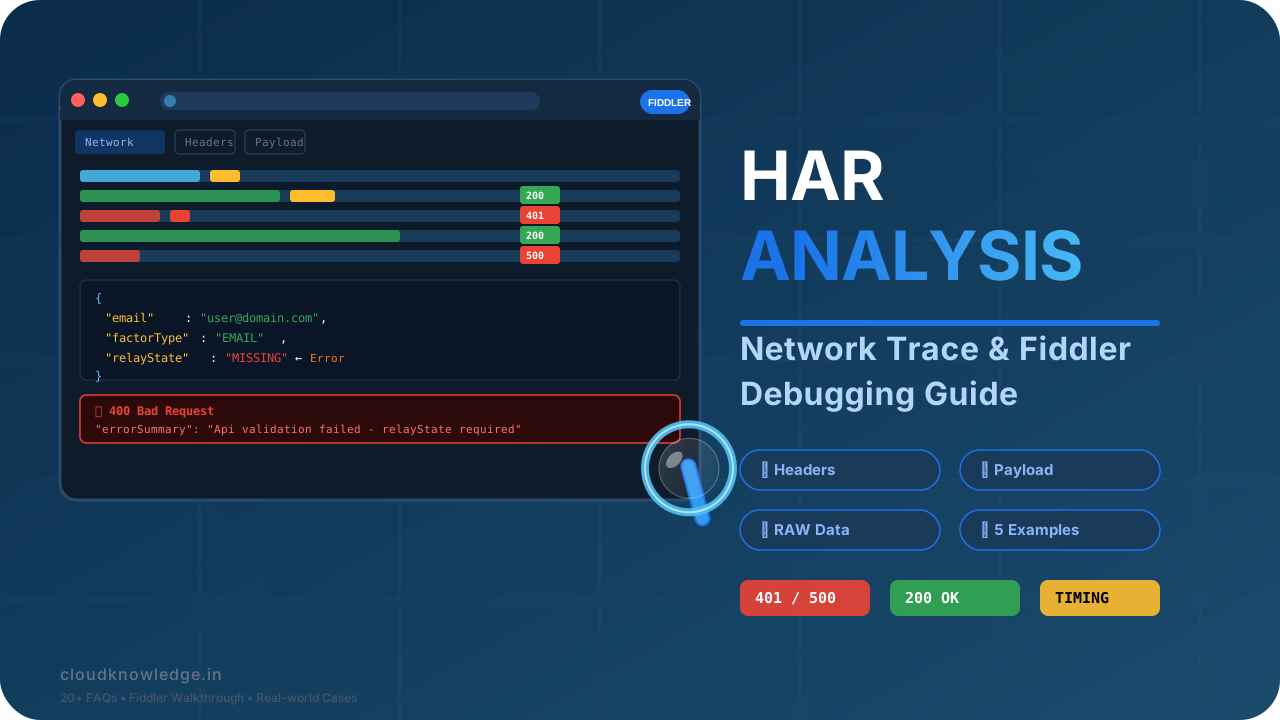
🔍 How to Analyse HAR / Browser / Network Trace Logs
The complete field guide to decoding HTTP archives, request/response headers, payloads, raw data, and
troubleshooting with Fiddler — with real-world examples, pros & cons, and 20+ FAQs.
Every modern web application, API gateway, or identity provider exchange generates a rich trail of
network activity. HAR (HTTP Archive) files capture this trail in a structured JSON format,
recording every request, response, header, cookie, timing, and payload. Whether you are debugging a
failed Okta password reset flow, investigating a provisioning sync
issue in Entra ID, or verifying authentication policies, HAR analysis is the
single most effective technique to see exactly what the browser and server said to each other.
This guide is written for IAM engineers, cloud architects, developers, and support professionals.
We will walk through every aspect of HAR analysis — from capturing a trace to reading headers,
inspecting raw data, understanding payloads, and using tools like Fiddler to troubleshoot errors.
Along the way, we reference expert resources from the
Cloud Knowledge YouTube channel,
the Cloud Knowledge Blog, and
in‑depth Medium guides on Okta interviews
and Azure Kubernetes Service.
A HAR (HTTP Archive) file is a JSON‑formatted log of all network interactions between a
browser (or any HTTP client) and the servers it communicates with. The format is defined by the
W3C Web Performance Working Group
and is supported by all major browsers, as well as tools like Fiddler, Charles Proxy, and
Postman. A typical HAR file contains:
log.entries – an array of request/response pairs, each with timings, headers, body size, and status.
request – method, URL, HTTP version, headers, query string, and post data.
response – status, headers, content (body), and encoding.
Request URL – the exact endpoint being called; verify path and query parameters.
Request Method – GET, POST, PUT, DELETE, PATCH.
Response Time (wait + receive) – high values indicate server or network latency.
Content‑Length – size of the response body; unexpectedly large or small payloads can be a red flag.
Cache‑Control / Expires – caching behaviour can cause stale data.
Set‑Cookie / Cookie – session management and state.
Authorization / Bearer – token presence and validity.
User‑Agent – client identification; mismatches can lead to compatibility issues.
Referer / Origin – helps trace the flow and detect CORS problems.
For identity‑related troubleshooting, also look for SAML or OIDC
specific parameters in the payload or query string. Our guide on
Authentication Policies in Okta
explains how policy rules affect these exchanges.
5. What Headers Indicate
HTTP headers carry metadata that often reveals the root cause of an issue. Here is what key headers tell you:
Authorization: Bearer <token> – the token is present; if missing, the client is not authenticated. If present but the server returns 401, the token may be expired or invalid.
Content‑Type – application/json, application/x‑www‑form‑urlencoded, multipart/form‑data, etc. Mismatch between Content‑Type and actual body format is a common error.
Accept – what the client expects; if the server returns a different format, the client may fail to parse.
Set‑Cookie – the server is trying to establish a session; if the client does not send it back in subsequent requests, session state is lost.
X‑Requested‑With – often used to differentiate AJAX requests from normal browser navigation.
X‑Forwarded‑For – the original client IP; useful when debugging proxy or load‑balancer setups.
Location (in response) – indicates a redirect; check if the redirect URL is correct.
WWW‑Authenticate – the server’s challenge for authentication; often seen with 401 responses.
In complex IAM scenarios, headers like X‑Okta‑Request‑Id or X‑MS‑Request‑Id
can be correlated with server‑side logs. For deeper insight, refer to our
Entra ID Provisioning
and Device Management in Entra ID
guides.
6. What RAW Suggests
The RAW view in Fiddler or HAR viewers shows the exact bytes sent over the wire,
including the request line, headers, and body. Analysing RAW data helps you:
Detect malformed JSON or XML – a missing comma or unescaped character can break parsing.
Verify line endings and encoding – Content‑Encoding: gzip means the body is compressed; you must decode it before reading.
Spot hidden characters – sometimes BOM (Byte Order Mark) or non‑printable characters sneak in.
Confirm exact request string – including the HTTP version (HTTP/1.1 or HTTP/2).
Check chunked transfer encoding – Transfer‑Encoding: chunked means the body is sent in parts.
When a request fails with a 400 Bad Request, the RAW view often reveals that the
body does not match the expected schema. This is especially common in
PowerShell network troubleshooting
scripts that construct HTTP requests manually.
7. Payload & Response Deep Dive
7.1 Request Payload
The payload (or body) of a POST/PUT/PATCH request contains
the data being sent to the server. Check for:
JSON structure – validate required fields, data types, and nested objects.
Form data – key‑value pairs; look for missing or misspelled keys.
File uploads – multipart boundaries and file names.
The response body contains the server’s answer. Key things to examine:
Error messages – often in a error or message field.
Stack traces – may reveal internal server errors.
Validation errors – field‑level issues (e.g., "password must be at least 8 characters").
Tokens – access_token, id_token, refresh_token.
Pagination metadata – nextLink, totalCount, etc.
For identity flows, the response payload often includes a sessionToken or
state parameter that must be carried forward. Our
Okta password reset
guide shows exactly how these payloads are structured in a recovery flow.
8. Tools That We Use: Fiddler, HAR Viewers, and More
Several tools can capture, view, and analyse HAR files. The most popular are:
Fiddler Classic / Fiddler Everywhere – the industry‑standard proxy for HTTP debugging. Allows you to inspect, modify, and replay requests. Supports HAR export/import.
Chrome DevTools – built‑in network tab with HAR export, filtering, and timing breakdown.
Postman – can import HAR files and convert them to collections for replay.
HAR Viewer – online or offline tools that visualise HAR data in a readable format.
Charles Proxy – similar to Fiddler, with advanced SSL proxying and bandwidth throttling.
Wireshark – for lower‑level packet analysis, though HAR is higher‑level.
For cloud and identity professionals, Fiddler remains the go‑to because of its extensibility,
session comparison, and rule‑based breakpoints. You can also use
PowerShell
to automate HAR analysis or trigger network traces on demand.
9. How to Troubleshoot and Analyse Errors with Fiddler
Fiddler is not just a capture tool; it is a powerful troubleshooting engine. Here is a
systematic approach to using Fiddler for HAR analysis:
Capture the session – ensure Decrypt HTTPS is enabled to see encrypted traffic.
Find the failing request – use the Search bar or filter by status code (4xx, 5xx).
Inspect the Inspector tabs – switch between Headers, TextView, JSON, RAW, and WebForms.
Compare with a successful request – use Compare or Diff to spot differences.
Set breakpoints – use Rules → Automatic Breakpoints → Before Requests to modify requests on the fly.
Replay the request – right‑click and select Replay → Reissue to test fixes.
Check the Timeline – the Timeline tab shows the sequence and duration of each request.
A common scenario: a 401 response with a WWW‑Authenticate: Bearer header
indicates the token is missing or invalid. Use Fiddler’s AutoResponder to mock a
valid token and test the rest of the flow. For deeper identity debugging, refer to our
Authentication Policies in Okta
guide, which explains how policy rules affect token issuance.
10. 5 Real‑World Analysis Examples
📌 Example 1: Okta Password Reset – 400 Bad Request
Scenario: A user tries to reset their password via the Okta API, but receives a 400 with "errorCode": "E0000001".