
Hyper-V (Microsoft) – Native Windows Virtualization Platform
The Ultimate Guide to Enterprise Virtualization, Security, and Hybrid Cloud Management
Table of Contents
In the modern era of cloud computing, virtualization is the bedrock of IT infrastructure. Hyper-V (Microsoft) stands as a premier, enterprise-grade virtualization platform that enables organizations to optimize their hardware investments. By running multiple operating systems as virtual machines (VMs) on a single physical server, Hyper-V reduces costs and improves efficiency.
This comprehensive guide explores the depths of Hyper-V, from its Type-1 architecture to advanced troubleshooting using PowerShell and the Graph API. Whether you are an IT pro managing a data center or a developer testing software, mastering Hyper-V is essential for modern cybersecurity and infrastructure management.

1. The Fundamentals (What is it?)
Many administrators mistakenly believe that because Hyper-V is installed as a "role" through the Windows Server interface, it functions like a standard application. This is incorrect. Hyper-V (Microsoft) is a Native & Type-1 Hypervisor (bare-metal).
The Hypervisor Architecture
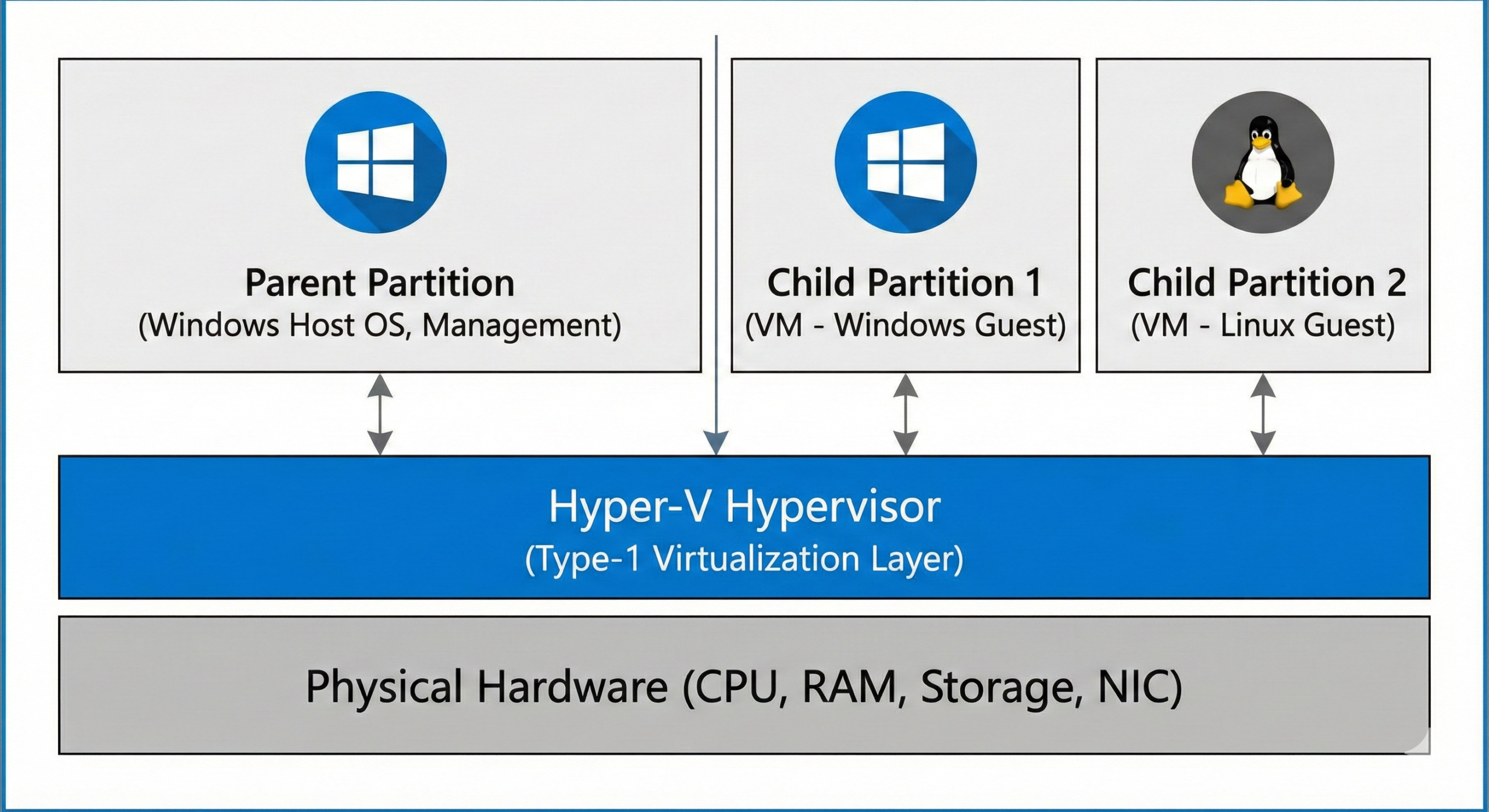
When you install the Hyper-V role and reboot the server, the hypervisor loads before the operating system. It creates a virtualization layer directly above the hardware. The Windows OS you interact with (and log into) essentially moves into a special virtual machine known as the Parent Partition.
The "Partition" Concept
- Parent Partition: This is the management OS (Windows Server or Windows 10/11). It has direct access to hardware devices and manages the hypervisor API. It controls the creation and deletion of child partitions.
- Child Partitions: These are the Guest VMs. They do not have direct access to physical hardware (except when using SR-IOV). Instead, they communicate with the hardware via the VMBus, utilizing the parent partition as a broker.
Broad OS Support
While Hyper-V is a Microsoft product, it offers robust support for Linux distributions. Modern kernels for Ubuntu, CentOS, Red Hat, and Debian include Linux Integration Services (LIS) built-in. This means Linux VMs running on Hyper-V are "enlightened"—they know they are virtualized and can optimize their own drivers for network and storage performance.
Key Points:
- Hyper-V is a Type-1, bare-metal hypervisor.
- The host OS runs in the Parent Partition; VMs run in Child Partitions.
- Linux is a first-class citizen on Hyper-V due to built-in LIS drivers.
FAQs:
Q: Can I run Hyper-V and VMware Workstation on the same PC?
A: Historically, no. However, modern versions of Windows 10/11 utilize the "Windows Hypervisor Platform" API, allowing some third-party hypervisors to coexist, though performance may vary.
Q: Is Hyper-V free?
A: It is included in Windows Pro, Enterprise, and Server editions. There was also a standalone "Hyper-V Server" product (free), though Microsoft is transitioning users to Azure Stack HCI for bare-metal needs.
2. Key Technical Features
Dynamic Memory
One of the most powerful features for increasing density is Dynamic Memory. Unlike static RAM assignment, Dynamic Memory allows Hyper-V to scale a VM's memory usage based on real-time demand.
For example, a VM might start with 2GB of RAM. If an application inside the VM spikes, Hyper-V can instantly assign it up to 16GB (if configured). When the process finishes, the memory is reclaimed and returned to the host pool for other VMs to use. This is crucial for VDI (Virtual Desktop Infrastructure) environments.
Checkpoints (Snapshots)
Checkpoints allow you to capture the state of a virtual machine at a specific point in time.
- Standard Checkpoints: Capture the exact memory state and disk state. If you revert, the VM resumes exactly where it was (even if an app was mid-calculation). Great for dev/test.
- Production Checkpoints: These use the Volume Shadow Copy Service (VSS) inside the guest OS. They create a data-consistent backup (like a database backup) but do not freeze the running applications. This is the recommended default for production servers to avoid database corruption.
Nested Virtualization
Nested Virtualization enables you to run Hyper-V inside a Hyper-V virtual machine. This "Inception-style" architecture is vital for:
- Running Docker containers with Hyper-V isolation inside a VM.
- Building complex cloud labs where you simulate a Hyper-V cluster on a single physical laptop.
Technical Troubleshooting (PowerShell):
If Nested Virtualization is not working, you often need to expose virtualization extensions to the vCPU.
# Enable Nested Virtualization for a specific VM
Set-VMProcessor -VMName "Lab-VM-01" -ExposeVirtualizationExtensions $true

# Verify the setting
Get-VMProcessor -VMName "Lab-VM-01" | Select-Object ExposeVirtualizationExtensions
FAQs:
Q: Should I use Dynamic Memory for SQL Server?
A: It depends. Database servers often cache as much RAM as possible. It is generally recommended to use static memory for heavy SQL workloads to ensure consistent performance.
3. Mobility & High Availability
Live Migration
Live Migration is the ability to move a running VM from one physical host to another with zero downtime to the users. It works by pre-copying the memory pages of the VM to the destination server. Once the memory is synchronized, the final state is transferred, and the network switch is updated to point to the new location—all within milliseconds.
Storage Migration
While Live Migration moves the execution (CPU/RAM), Storage Migration moves the virtual hard disk files (VHDX). This allows you to migrate VMs from slow magnetic storage to fast NVMe SSDs without shutting down the server.
Hyper-V Replica
For disaster recovery, Hyper-V Replica is a game-changer for SMBs. It creates an offline copy of your VM on a secondary server (which can be in a different building or city). It replicates changes asynchronously (every 30 seconds, 5 mins, or 15 mins).
If your primary data center catches fire, you can simply "Failover" to the Replica VM. It does not require expensive SAN-to-SAN replication hardware.
Key Points:
- Live Migration = Zero Downtime (Host maintenance).
- Storage Migration = Zero Downtime (Storage maintenance).
- Hyper-V Replica = Disaster Recovery (Asynchronous replication).
External Resource:
For a deep dive into configuring constraints, see the Official Microsoft Live Migration Documentation.
4. Networking Architecture
Virtual Switch Types
Networking in Hyper-V is managed by the Virtual Switch. Understanding the three types is critical for security and connectivity.
| Switch Type | Communication Scope | Typical Use Case |
|---|---|---|
| External | VM to Host, VM to VM, VM to Physical Network/Internet | Production servers needing internet or LAN access. |
| Internal | VM to Host, VM to VM (No Physical Network access) | Building a lab environment where you need to RDP from the Host but don't want the VMs on the internet. |
| Private | VM to VM only (Isolated from Host and Physical Network) | High-security sandbox environments for malware analysis. |
vNIC Advanced Features
The virtual network adapter (vNIC) includes enterprise features such as:
- MAC Address Spoofing: Required if the VM is running a Network Load Balancer (NLB) service.
- Bandwidth Management: Allows you to set Minimum and Maximum Mbps limits for a specific VM, preventing a "noisy neighbor" from consuming all network bandwidth.
PowerShell Troubleshooting:
Creating a new External Switch via PowerShell ensures precision.
# Get physical adapter name
Get-NetAdapter

# Create a new External Switch bound to the physical adapter
New-VMSwitch -Name "ProductionSwitch" -NetAdapterName "Ethernet 1" -AllowManagementOS $true
5. Security (Cybersecurity Focus)
In the age of ransomware and Zero Trust, Hyper-V offers defense-in-depth capabilities.
Shielded VMs
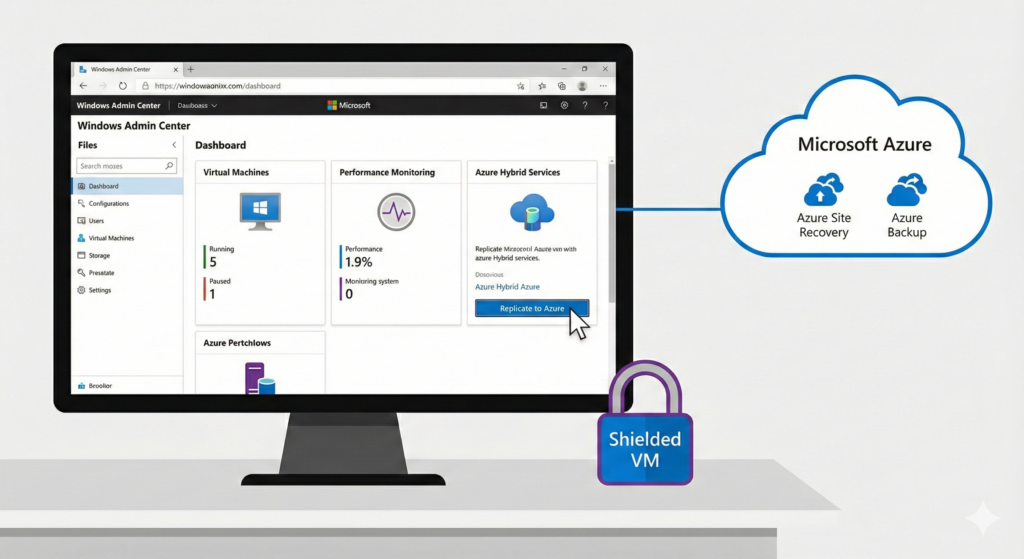
A Shielded VM protects the virtual machine's data from the Host Administrator. If a hacker compromises the physical Hyper-V host, they usually have access to all VM files. However, with Shielded VMs, the virtual disk (VHDX) is encrypted using BitLocker. The VM will only boot if it is running on a healthy, authorized host (verified by the Host Guardian Service).
Secure Boot
Enabled by default in Generation 2 VMs, Secure Boot ensures that the bootloader has a valid digital signature. This prevents rootkits and unauthorized bootloaders from loading before the OS.
vTPM (Virtual Trusted Platform Module)
Hyper-V can emulate a TPM 2.0 chip for the Guest VM. This is mandatory for running Windows 11 as a guest. It enables BitLocker encryption inside the VM, protecting sensitive data at rest.
Key Points:
- Shielded VMs protect data even from the IT admin.
- vTPM is required for modern Windows security standards.
- Always use Gen 2 VMs for the best security posture.
External Resource:
Learn more about Guarded Fabric and Shielded VMs.
6. Management & Modern Integration
PowerShell Direct
Traditionally, if a VM lost network connectivity, you had to use the console. PowerShell Direct allows you to inject PowerShell commands into a VM from the Host OS using the VMBus—no network connection required. This is invaluable for fixing broken network configs.
# Enter a session directly into the VM without network
Enter-PSSession -VMName "Broken-Web-Server" -Credential (Get-Credential)
Windows Admin Center (WAC)
WAC is the modern, browser-based evolution of management. It replaces the legacy MMC snap-ins with a sleek HTML5 interface. It integrates Hyper-V management with Azure services, Performance Monitor, and Event Viewer in a single pane of glass.
Azure Hybrid Benefit
Hyper-V is the foundation for the hybrid cloud. Using Azure Site Recovery (ASR), you can replicate on-premise Hyper-V VMs directly to Microsoft Azure. This serves as a cloud-based disaster recovery site or a migration path.
Graph API for Automation
For developers building custom management portals, the Microsoft Graph API can be used to manage Intune-enrolled devices or Azure Stack HCI clusters.
// Example: POST request to create a management task (Conceptual)
POST https://graph.microsoft.com/v1.0/deviceManagement/virtualEndpoint/provisioningPolicies
Content-Type: application/json
{
  "displayName": "Hyper-V-Policy",
  "description": "Policy for Hybrid Cloud",
  "imageDisplayName": "Windows 11 Enterprise"
}
FAQs:
Q: Is Hyper-V Manager going away?
A: It is still available, but Microsoft invests all new feature development into Windows Admin Center (WAC).
7. File Formats (Quick Reference)
VHD vs. VHDX
- VHD (Legacy): Capped at 2TB. Prone to corruption during power outages.
- VHDX (Modern): Supports up to 64TB. Includes a log mechanism to protect against data corruption during power failures. Always use VHDX.
Generation 1 vs. Generation 2
- Generation 1: BIOS-based. Emulates legacy hardware (IDE controller, Legacy NIC). Required only for old OSs like Server 2003 or 32-bit systems.
- Generation 2: UEFI-based. Supports Secure Boot, vTPM, PXE boot via standard NIC, and boots significantly faster.
Key Points:
- Default to VHDX and Generation 2 for all new deployments.
- Gen 2 is required for Windows 11.


bahis
just finished reading and i am blown away by the value u provided here for free. i have seen people charge a lot of money for info that isnt half as good as what u just gave us. u are a true asset to this community and i hope u know how much your work is appreciated. thanks for the great read and looking forward to the next one!
https://kazancperisi.com