••Updated: October 23, 2026•⏱️ 20 min read•💬 0 Comments
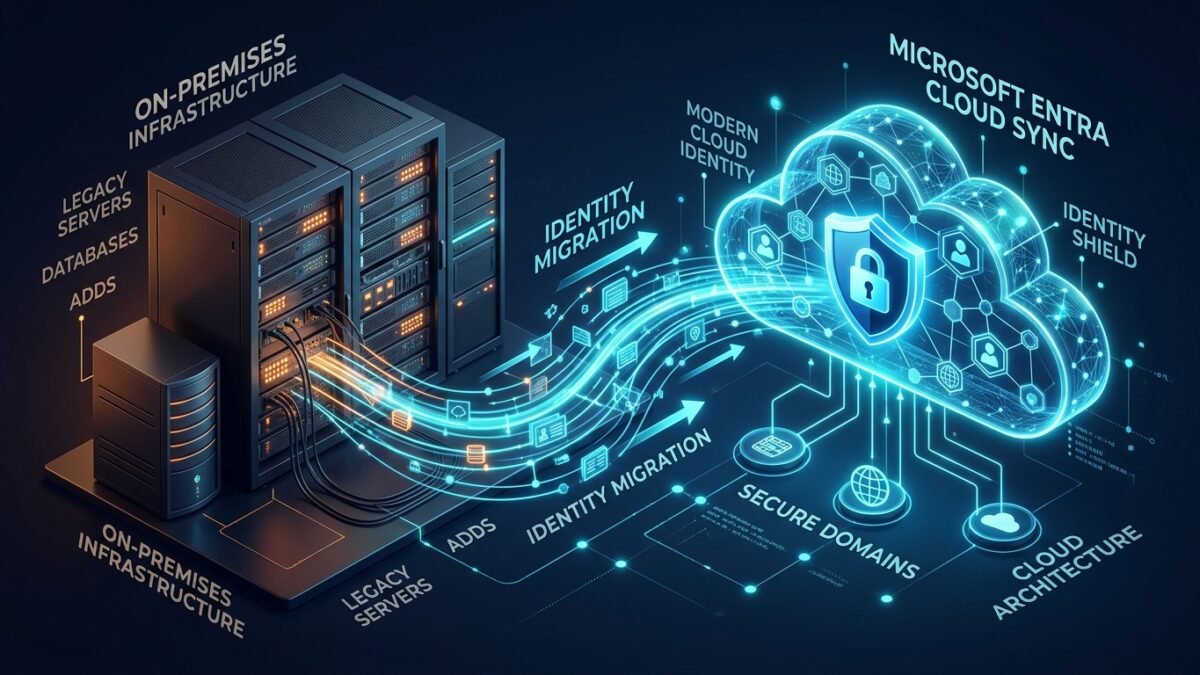
The definitive architectural blueprint for transitioning multi-domain enterprises with 20 Active Directory domains, AD FS token federation, 2 partner organization trusts, active/staging server topologies, and 40 custom synchronization rules to Microsoft Entra Cloud Sync.
Azure AD Connect running in active/passive failover requiring careful exclusion scoping to avoid collisions.
1. The Architectural Shift: Heavy Engine to Cloud Micro-Agents
For more than a decade, Microsoft Entra Connect (formerly Azure AD Connect / DirSync / AADSync) served as the hybrid identity backbone. Built upon the legacy Microsoft Identity Manager (MIM) architecture, it relies on an on-premises SQL Server database, an in-memory metaverse, and a localized declarative synchronization engine.
Microsoft Entra Cloud Sync completely flips this model. The synchronization rules engine, scheduling orchestrator, and transformation calculations are shifted directly into the Microsoft Entra cloud infrastructure (SCIM-based provisioning service). The on-premises footprint is reduced to lightweight, stateless, outbound-only agents.
Figure 1: Architecture Paradigm Shift (Legacy Heavy MIM Engine vs. Modern Cloud Micro-Agents)
🖥️ On-Premises Windows Server (Active + Staging Pair)
• MIM Synchronization Service Engine with localized SQL Server (Express / Full)
• In-Memory Metaverse caching all identities & attribute flows
• 40 Custom Declarative Rules calculated on-premises • Fixed 30-minute scheduler
⚠️ Perimeter Reachability: Direct Line-of-Sight
Direct TCP/UDP LDAP, Kerberos, RPC, SMB ports to all 20 Domain Controllers & 2 Partner Trusts. Hundreds of firewall rules required across corporate subnets.
Outbound HTTPS (Port 443) only via Azure Service Bus relay. Zero inbound firewall ports required. No full-mesh cross-forest WAN connectivity needed!
💡
Key Architectural Distinction: Active-Active vs. Active-Passive
Azure AD Connect required manual intervention to promote a Staging Server to Active status if the primary server failed. Cloud Sync uses Agent Groups (Pools) in an Active-Active load-balanced arrangement. If one agent loses connectivity or an entire virtual machine host restarts, the other agents immediately continue syncing without any failover script or sync freeze.
2. The Elephant in the Room: Migrating the 40 Custom Sync Rules
In virtually every enterprise migration, custom synchronization rules represent 80% of the risk. Azure AD Connect uses Declarative Provisioning inside the Synchronization Rules Editor (combining Inbound and Outbound rules, precedence numbers between 1 and 100, joins, and transformations across the Metaverse).
Cloud Sync replaces the MIM engine with the Microsoft Entra Attribute Mapping & Expression Builder (based on SCIM schema specifications). You cannot simply import an .xml rule export from AD Connect. Every single rule must be categorized into one of three tiers.
Phase 1: Auditing and Extracting the 40 Rules from AD Connect
Run the following PowerShell script on your Primary Azure AD Connect Server. It identifies, isolates, and exports only non-standard rules (precedence < 100 or customized rules) into a clean analysis CSV and XML backup:
PowerShell • Execute on Primary AD Connect Server
# Import the ADSync Module
Import-Module ADSync

# Output directory for assessment
$exportPath = "C:ADSyncMigrationAudit"
if (-not (Test-Path $exportPath)) { New-Item -ItemType Directory -Path $exportPath | Out-Null }

Write-Host "Analyzing Active Directory Connect Synchronization Rules..." -ForegroundColor Cyan

# Fetch all sync rules that are NOT standard out-of-the-box Microsoft rules
# Standard OOB rules usually have precedence >= 100
$customRules = Get-ADSyncRule | Where-Object {
    $_.Precedence -lt 100 -or $_.Name -like "In from AD - Custom*" -or $_.Name -like "Out to AAD - Custom*"
}

Write-Host "Found $($customRules.Count) custom synchronization rules." -ForegroundColor Green

# Generate detailed report with attribute transformations
$report = foreach ($rule in $customRules) {
    foreach ($flow in $rule.AttributeFlowMappings) {
        [PSCustomObject]@{
            RuleName         = $rule.Name
            Precedence       = $rule.Precedence
            Direction        = $rule.Direction
            SourceObjectType = $rule.SourceObjectType
            TargetObjectType = $rule.TargetObjectType
            FlowType         = $flow.MappingType # Direct, Expression, or Constant
            SourceAttribute  = if ($flow.MappingType -eq "Expression") { $flow.Expression } else { $flow.Source -join ", " }
            TargetAttribute  = $flow.Destination
            ExecuteOnce      = $flow.ExecuteOnce
        }
    }
}

# Export to CSV for engineering triage
$report | Export-Csv -Path "$exportPathCustomRules_AttributeMatrix.csv" -NoTypeInformation
# Export complete rule definition objects for rollback/reference
$customRules | Export-Clixml -Path "$exportPathCustomRules_CompleteBackup.xml"

Write-Host "Audit completed successfully. Report exported to $exportPathCustomRules_AttributeMatrix.csv" -ForegroundColor Yellow
Cloud Sync uses a different expression syntax than AD Connect. Below is the definitive conversion dictionary for common enterprise patterns found across custom rules:
Use Case & Scenario
Legacy AD Connect Declarative Syntax
Modern Cloud Sync Expression Syntax
Complexity & Strategy
Fallback Email Logic If mail is empty, use UPN as email
[userAccountControl] NOT_BIT_AND "2" (Configured via Cloud Sync Scoping Filter)
Filter Builder
ProxyAddresses Normalization Force secondary aliases to lowercase
LCase([proxyAddresses])
ToLower([proxyAddresses])
Syntax Shift
Manager DN to Cloud UPN Resolve On-Premises DN to Cloud User
Metaverse Join via MV_ManagerDN
[manager] ➔ [manager] (Auto-resolved by SCIM thread)
Automated Resolution
Phase 3: The Hard Truth — What Cannot Be Directly Migrated
Out of your 40 custom rules, there will typically be 4 to 8 rules that touch unsupported scenarios in Cloud Sync. Here is how you tackle them without breaking your identity lifecycle:
Complex Multi-Source Precedence in the Metaverse
The AD Connect Scenario: In multi-forest environments, User A has an account in Forest 1 (HR source) and an account in Forest 2 (Exchange mailbox). AD Connect joined both accounts in the Metaverse, taking displayName from Forest 1 and mail from Forest 2 based on precedence order.
Cloud Sync Reality: Cloud Sync does not possess an on-premises Metaverse. Objects are synchronized directly from Active Directory to Entra ID via individual SCIM configuration threads.
Engineering Workaround: Pre-Sync AD Normalization
Implement a lightweight scheduled PowerShell automation or Identity Governance task on-premises that writes the required authoritative attributes into the primary account’s extensionAttribute1..15 prior to Cloud Sync picking it up. Alternatively, if one account is disabled (Linked Mailbox scenario), configure Cloud Sync’s scoping filter to only sync the master account.
Hybrid Azure AD Join (Device Synchronization)
Crucial Limitation:Microsoft Entra Cloud Sync currently does NOT synchronize computer objects. It only synchronizes Users, Security/Distribution Groups, and Contacts.
CRITICAL ARCHITECTURAL WARNING FOR CONDITIONAL ACCESS
If your organization enforces Conditional Access policies requiring “Require Hybrid Azure AD Joined Device”, decommissioning AD Connect entirely will stop newly domain-joined Windows 10/11 machines from registering in Entra ID!
Enterprise Solution:
Strategy A (Recommended): Accelerate transition to Microsoft Entra Joined devices managed via Microsoft Intune (cloud-native endpoints).
Strategy B (Coexistence): Keep Azure AD Connect running with a minimalist footprint exclusively syncing the Computer object OU, while Cloud Sync takes over 100% of Users, Groups, and Contacts.
Cross-Forest GALSync (Global Address List Synchronization)
The AD Connect Scenario: Synchronizing cross-forest mail users as Mail-Enabled Contacts in peer forests for Exchange on-premises GAL coexistence.
Cloud Sync Reality: Cloud Sync is strictly an Active Directory-to-Cloud (Inbound) and Password Writeback / Group Writeback (Outbound) tool. It does not write contact objects into peer on-premises Active Directory forests.
Resolution
If mail routing and cross-forest calendaring is routed via Exchange Online (Office 365), cross-forest on-premises GALSync is redundant. All mailboxes in Exchange Online exist in the unified Cloud GAL automatically.
In a traditional AD Connect deployment, the AD Connect server required direct TCP/UDP line-of-sight (Kerberos, LDAP, RPC, SMB) to domain controllers across all 20 domains and both trusted partner organizations. In segmented corporate networks, this demanded hundreds of firewall holes.
Figure 2: Cloud Sync Agent Pool Topology Across 20 Domains & 2 External Trusts
High-Availability Topology
☁️ Microsoft Entra ID Cloud Management Plane
Single Central Provisioning Engine • Password Hash Sync (PHS) • SSPR Password Writeback Active
Outbound Port 443 OnlyEncrypted Azure Service Bus Relay
Zone 1: Production Forest12 Domains
🛡️ Agent Pool A (3 Provisioning Agents)
Active-Active HA • Local LDAP to corp.contoso.com
• Root DC + 11 Child Domains
• AD FS Federated Domains: Token issuance preserved with strict ms-DS-ConsistencyGuid immutable anchor validation.
Zone 2: Subsidiary Forest8 Domains
🛡️ Agent Pool B (2 Provisioning Agents)
Deployed in Regional DMZ • emea.contoso.com
• 8 Remote regional Active Directory domains
• Zero WAN Routing: Agents query local regional DCs and push directly to Entra ID over outbound 443. No WAN routing to HQ needed!
Zone 3: Partner Org Trusts2 External Trusts
🛡️ Agent Pool C (2 Provisioning Agents)
Installed in Partner DMZ Perimeter
• PartnerOrg1.local & PartnerOrg2.local
• No Cross-Tenant VPN: Agents sync directly to your Entra ID tenant without bridging company networks or risking perimeter intrusion.
When a user authenticates against an AD FS federated domain in Entra ID, Entra ID passes the authentication request to AD FS. AD FS inspects the user, generates a SAML 2.0 token containing an ImmutableID claim, and returns it to Entra ID.
Entra ID verifies that the ImmutableID in the SAML token matches the sourceAnchor attribute stored on the user object in the cloud. If they do not match, the user is locked out with error AADSTS50107: Requested federation realm object does not exist or login mismatch!
RULE #1 FOR ADFS DOMAINS IN CLOUD SYNC
Ensure your Entra Cloud Sync configuration sets sourceAnchor to ms-DS-ConsistencyGuid.
Azure AD Connect modern versions calculate sourceAnchor from ms-DS-ConsistencyGuid. Cloud Sync does the exact same calculation natively. As long as you do not override or map sourceAnchor to objectGUID manually, federated users will authenticate seamlessly without any re-prompting or token rejection.
The Partner Organizations (2 External Trusts) Solution
Under AD Connect, synchronizing users from two partner organizations connected via external forest trusts required either:
✖ Complex IPSec VPN tunnels between data centers so the central AD Connect server could perform RPC/LDAP queries.
The Cloud Sync Revolution: You can install two Cloud Sync Agents directly inside the Partner Organization’s network! The agents only require outbound HTTPS (port 443) access to Microsoft Entra ID endpoints. They query their local Partner Domain Controllers via local LDAP, and stream the identities directly to your central Entra ID tenant over encrypted cloud WebSockets. Zero firewall ports between the partner network and your corporate network!
4. Managing the Primary & Staging (Secondary) AAD Connect Servers
You cannot simply turn on Cloud Sync for an entire forest while an Active Azure AD Connect server is synchronizing the same objects. This creates an Authority Conflict (Race Condition): AD Connect syncs at minute 00; Cloud Sync syncs at minute 02. If attribute transformations differ even slightly, the cloud attributes will bounce back and forth in an endless update loop!
1
Understanding the Staging Server Role During Cutover
Your existing Secondary (Staging) Server must remain in Staging mode. Do NOT touch its operational state yet. It serves as your instantaneous emergency roll-back engine. If you must revert Cloud Sync, you can simply re-enable sync rules on AD Connect without rebuilding a database.
2
Configuring Scoping Exclusion on Primary & Staging Servers
Before enabling Cloud Sync on a pilot domain or OU, you must exclude that OU from Azure AD Connect. However, if you uncheck an OU in AD Connect’s Domain/OU Filtering wizard, AD Connect will stage a deletion for all cloud objects in that OU!
PREVENT OBJECT ACCIDENTAL DELETION
If you simply uncheck an OU in Azure AD Connect, Entra ID moves those users into the “Deleted Items” recycle bin.
The Safe Enterprise Pattern:
Set up a custom Inbound Synchronization Rule on AD Connect with high precedence (e.g., precedence 50) targeting the pilot OU or a dedicated migration tag (e.g. adminDescription = "MigrateToCloudSync").
Set the flow mapping on that rule to do NOT contribute attributes, or use an Outbound rule that sets cloudFiltered = True.
When cloudFiltered = True is evaluated on AD Connect, Cloud Sync can immediately claim ownership of the cloud anchor without the user ever being deleted or losing their cloud-assigned licenses and group memberships!
Outbound HTTPS (Port 443) and HTTP (Port 80 for CRL checks) No inbound ports required!
Verify egress to *.msappproxy.net, *.servicebus.windows.net
Service Account
Group Managed Service Account (gMSA) supported
Domain Functional Level Windows Server 2012+
Automated Network Connectivity & Port Pre-Check Script
Run this script on each candidate agent server across your 20 domains to ensure no firewall or proxy intercepts SSL/TLS traffic:
PowerShell • Cloud Sync Port Verification
# Cloud Sync Agent Outbound Connectivity Validator
$Endpoints = @(
    "login.microsoftonline.com",
    "aadcdn.msauth.net",
    "bootstrap.cloudsync.azure.com",
    "servicebus.windows.net",
    "crl3.digicert.com"
)

Write-Host "--- Checking Outbound Port 443/80 Egress for Entra Cloud Sync ---" -ForegroundColor Cyan
foreach ($endpoint in $Endpoints) {
    $port = if ($endpoint -like "crl*") { 80 } else { 443 }
    try {
        $test = Test-NetConnection -ComputerName $endpoint -Port $port -WarningAction SilentlyContinue
        if ($test.TcpTestSucceeded) {
            Write-Host "[OK] Connected to $endpoint on port $port" -ForegroundColor Green
        } else {
            Write-Host "[FAIL] Unable to connect to $endpoint on port $port" -ForegroundColor Red
        }
    } catch {
        Write-Host "[ERROR] Exception connecting to $endpoint : $_" -ForegroundColor Red
    }
}
6. Phased Step-by-Step Transformation Workflow
1
Step 1: Deploying Agent Pools in High Availability
To maintain carrier-grade reliability across 20 domains and 2 partner trusts, deploy minimum 2 to 3 agents per network boundary.
Log into the Microsoft Entra Admin Center as a Hybrid Identity Administrator.
Navigate to Identity ➔ Hybrid management ➔ Microsoft Entra Connect ➔ Cloud sync.
Click Download agent and save AADConnectProvisioningAgentSetup.exe.
Run the installer on the target host. When prompted, select Group Managed Service Account (gMSA).
Enter Enterprise Admin or Domain Admin credentials (used strictly once to generate the gMSA object in Active Directory).
Authenticate against Entra ID to link the agent into the tenant’s provisioning topology.
2
Step 2: Configuring Configuration Profile & Replicating the 40 Rules
In the Entra portal, click New configuration and choose the target Active Directory forest.
Password Hash Sync (PHS): Check Enable password hash sync if moving from ADFS or standardizing PHS for disaster recovery.
Scoping Filters: Set scoping to Selected organizational units (OUs). Select only your Pilot OU.
Attribute Mapping: Click on Click to edit mappings. This is where you configure the SCIM mappings translated from your 40 custom rules!
Input the expressions validated during Phase 2 (e.g., IIF(IsNullOrEmpty([mail]), [userPrincipalName], [mail])).
3
Step 3: Side-by-Side Validation on Demand
Before activating the configuration for the entire OU, use the Provision on demand feature in the portal.
✔ Pick 5 diverse test accounts: 1 standard user, 1 user with complex email proxyAddresses, 1 federated ADFS user, 1 partner trust user, and 1 user affected by custom regex scrubbing.
✔ Enter the Distinguished Name (DN) of each user.
✔ Verify the 4-step execution: Fetch from AD ➔ Apply Scoping ➔ Match Target (Object Anchor Match) ➔ Perform Action (Update/Sync).
✔ Confirm that sourceAnchor matches the exact base64 representation of ms-DS-ConsistencyGuid already registered in Entra ID!
4
Step 4: Domain-by-Domain Cutover & Decommissioning AD Connect
Roll out domain by domain across all 20 domains over a planned multi-week migration window. Once 100% of User, Group, and Contact OUs are handled by Cloud Sync:
PowerShell • Disable AD Connect Sync Scheduler
# On Primary AD Connect Server, stop the synchronization scheduler
Set-ADSyncScheduler -SyncCycleEnabled $false

# Verify scheduler status is Disabled
Get-ADSyncScheduler | Select-Object SyncCycleEnabled, SchedulerSuspended

# Perform a final export review to ensure no pending exports exist in the connector space
Get-ADSyncConnectorRunStatus
Keep the AD Connect server intact in this stopped state for 14 days (cooling-off period). Once business operations verify zero identity, token, or password writeback issues, proceed to uninstall Microsoft Azure AD Connect from Programs and Features on both Primary and Staging servers.
7. Accounts, Permissions & Directory Rights Architecture
One of the greatest security benefits of Cloud Sync is eliminating the sprawling domain administrator credentials historically required by Azure AD Connect.
Identity / Account
Scope
Permissions Required
Purpose
Entra ID Admin
Cloud Tenant
Hybrid Identity Administrator (or Global Admin)
Initial agent pairing & configuration management in Entra Portal.
Agent Bootstrap Admin
On-Prem AD
Enterprise Admin or Domain Admin
One-time only during agent setup to generate the gMSA object in Active Directory.
provAgentgMSA$ (Automated Service Account)
On-Prem AD Root
• Read all object properties
• Replicating Directory Changes
• Replicating Directory Changes All
Continuous LDAP queries and Password Hash Synchronization (PHS) across the 20 domains.
Unlike AD Connect, which required digging through the Synchronization Service Manager GUI, Cloud Sync diagnostics are accessible via Entra Provisioning Logs and local Windows Event Logs.
Error Code / Status
Root Cause Analysis
Remediation Action
Error 105 Agent Communication Failure
The on-premises Provisioning Agent cannot establish or maintain an outbound WebSocket connection to Azure Service Bus.
1. Check firewall outbound Port 443.
2. Check if SSL inspection/deep packet inspection is stripping or modifying TLS certificates.
3. Restart AADConnectProvisioningAgent service.
Error 107 Agent Credentials Invalid
The cloud token used during agent registration has expired or the on-premises gMSA password cache is out of sync.
Re-run the agent registration wizard using AADConnectProvisioningAgentSetup.exe to re-authenticate and refresh the gMSA binding.
DuplicateAttributeResiliency Attribute Collision
Two accounts in different domains/forests have the same userPrincipalName or proxyAddresses (SMTP alias).
Run the IdFix Privacy & Identity Tool across all 20 domains. Update conflicting proxy addresses before sync can proceed.
AmbiguousMatchError
Cloud Sync found two existing objects in Entra ID that could match the incoming on-premises user during soft-matching.
Cloud Sync requires a unique match on mail or userPrincipalName. Clear duplicate cloud attributes or enforce hard matching using sourceAnchor.
Quarantine State Configuration Quarantined
The failure rate in the sync job exceeded the threshold (typically > 10% errors across sync iterations).
1. Review the Entra ID Provisioning Logs for the specific underlying error.
2. Resolve the underlying identity conflict.
3. Click Restart provisioning in the Cloud Sync portal to clear quarantine.
LargeGroupLimitExceeded
Attempting to synchronize a group containing more than 50,000 members.
Cloud Sync caps group membership at 50,000 members per group. Split enterprise broadcast groups into hierarchical subgroups or manage them via Dynamic Groups in the cloud.
Agent Local Log Inspection
When diagnosing on-premises agent failures, open Event Viewer and navigate to:
Path • Windows Event Viewer
Applications and Services Logs > Microsoft > Azure AD Connect Provisioning Agent > Admin
Migrating your identity sync engine interacts directly with your Zero Trust perimeter and Conditional Access policies:
🛡️
1. Device Compliance & Hybrid Azure AD Join Warning
As highlighted in Section 2, Cloud Sync does NOT sync computer objects. If you have Conditional Access policies enforcing:
Grant Access ➔ Require Hybrid Azure AD Joined Device,
any new workstation added to your on-premises domains will NOT be able to satisfy this grant until it is synced. You must maintain AD Connect for device synchronization or migrate endpoints to Microsoft Entra Join.
🔑
2. Seamless Single Sign-On (Seamless SSO) & Kerberos Keys
If you utilize Seamless SSO with Cloud Sync, the agent creates the computer account AZUREADSSOACC in Active Directory.
Security Mandatory: Rotate the Kerberos decryption key on AZUREADSSOACC at least every 30 days using the Update-AzureADSSOForest PowerShell cmdlet to prevent Pass-the-Ticket (PtT) attacks, ensuring AES-256 encryption is enabled on the computer object.
🏰
3. Tier 0 / Control Plane Security Classification
Servers hosting the Microsoft Entra Provisioning Agent hold replicate-directory-changes permissions in Active Directory.
Hardening Requirements:
Classify and isolate agent servers as Tier 0 / Control Plane assets (same security posture as Domain Controllers and ADFS servers).
Prohibit local administrator rights for standard IT staff; use Privileged Access Workstations (PAWs).
Block all internet browsing from these servers; only allow egress to designated Microsoft Entra FQDNs.
Before committing to a complete cutover, evaluate this authoritative feature comparison between Entra Connect and Entra Cloud Sync:
Feature / Capability
Microsoft Entra Connect
Microsoft Entra Cloud Sync
Architectural Verdict
Sync Frequency
Fixed 30-minute interval (can be lowered to 7 mins with risk)
Near real-time (Approx. 2 minutes)
Cloud Sync Wins
On-Premises Infrastructure
Heavy: Windows Server + SQL Server (Full or Express)
Lightweight: Small stateless agents (< 200MB)
Cloud Sync Wins
High Availability
Active / Passive Staging (Manual promotion required)
Active / Active Agent Pools (Automatic failover)
Cloud Sync Wins
Multi-Forest Topology
Requires direct network routing to every domain
Agents can be deployed anywhere without cross-routing
Cloud Sync Wins
Computer / Device Sync
Full support (Hybrid Azure AD Join)
Unsupported
AD Connect Required
Custom Sync Rules Flexibility
Unlimited Declarative rules & in-memory Metaverse
SCIM Expression Builder (No local metaverse)
Requires Planning
Group Size Limit
Unlimited (Supports groups with > 250,000 members)
50,000 members maximum per group
Check Group Sizes
Password Hash Sync (PHS)
Supported
Supported
Parity
Password Writeback (SSPR)
Supported
Supported
Parity
Auto-Upgrade
Often problematic in complex custom environments
Seamless agent auto-updating managed by Microsoft
Cloud Sync Wins
11. Conclusion & Recommended Road Map
Migrating from Microsoft Entra Connect to Entra Cloud Sync across 20 domains, federated ADFS systems, and 40 custom rules is not just a tool replacement—it is a modern identity transformation that liberates your enterprise from legacy SQL-bound servers, simplifies cross-forest firewalls, and accelerates synchronization from 30 minutes down to 2 minutes.
By decomposing your 40 custom rules into SCIM expressions, maintaining ADFS sourceAnchor alignment, safely scoping out AD Connect via staging filters, and isolating your lightweight agent pools across regional subnets and partner trusts, you achieve seamless, zero-downtime identity modernization.
Architect's Toolkit RecommendationVerified Production Tools • AdSense Compliant
Recommended Hardware & Reference Architecture Literature
Tested tools and authoritative documentation to implement the architectures covered in this lab: