

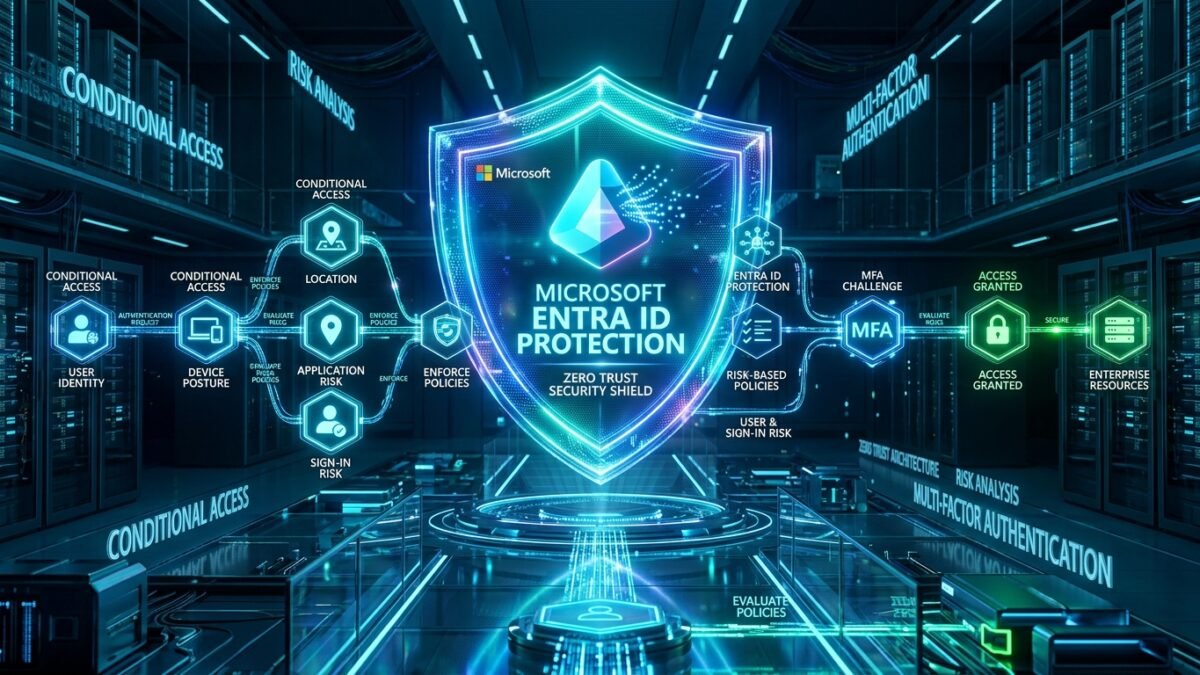
Static perimeter defenses and one-time multi-factor authentication (MFA) at initial sign-in no longer satisfy modern enterprise compliance frameworks. Once an attacker obtains a valid session cookie through token theft or Adversary-in-the-Middle (AiTM) phishing, traditional Conditional Access policies remain blind to subsequent lateral movement within the session. Microsoft Entra ID Authentication Context transforms identity defense from perimeter checkpointing into dynamic, in-session step-up enforcement. In this architectural guide, we dissect how to design, deploy, and automate Authentication Contexts (c1 through c25) to mandate phishing-resistant FIDO2 verification, Intune device compliance, and real-time risk evaluation before executing high-privilege operations in Microsoft 365, Azure Portal, and custom business applications.
1. The Problem: Session Cookie Hijacking and Static MFA Inadequacy
In standard enterprise deployments, an employee authenticates in the morning, satisfies MFA, and receives primary refresh tokens (PRT) and session cookies that remain valid for hours. If an adversary executes an AiTM proxy attack (e.g., Evilginx) or harvests session cookies from an unmanaged endpoint via infostealer malware, the adversary can impersonate the victim seamlessly. Under static policies, sensitive actions—such as modifying financial wire configurations, exporting customer databases from SharePoint, or activating Azure Global Admin roles—proceed unimpeded because the session was validated at 8:00 AM.
To thwart session hijacking, enterprises require just-in-time, action-based step-up authentication. Authentication Context bridges this gap by decoupling the initial user logon from sensitive workload actions, forcing re-authentication or posture verification precisely when elevated risk or critical data boundaries are encountered.
| Security Dimension | Standard Conditional Access | Authentication Context Enforced |
|---|---|---|
| Trigger Timing | Initial token issuance / application launch | Specific action, sensitivity label, or PIM activation |
| Session Hijacking Defense | Vulnerable to stolen session cookies & PRT re-use | Invalidates stolen cookie upon reaching protected boundary |
| MFA Strength Flexibility | Global policy applied across the entire tenant | Dynamic step-up to FIDO2 / Certificate-Based Auth (CBA) |
| Device Posture Coupling | Evaluated once during login handshake | Continuous verification via Continuous Access Evaluation (CAE) |
| Purview Data Integration | None; cannot inspect file-level sensitivity | Directly enforced via SharePoint & Sensitivity Labels |
2. Architectural Blueprint: How Authentication Context Operates
Authentication Context is an abstract claim (labeled c1 through c25) published in your Entra ID tenant. When a user requests a sensitive resource or attempts a sensitive operation, the relying party application (or Purview label engine) issues an authentication challenge containing the required context identifier. Entra ID Security Token Service (STS) halts the request, matches the context identifier against your Conditional Access policies, evaluates the user’s current session claims, and demands additional proofs if requirements are unsatisfied.
Core Interaction Flow
- Initial Access: User logs into Microsoft 365 with passwordless Microsoft Authenticator (Satisfies baseline policy).
- Resource Request: User navigates to a high-confidentiality SharePoint site labeled “Project Apex” mapped to Context
c1. - Claims Challenge: SharePoint detects Context
c1and responds with an HTTP 401 Unauthorized containing aclaimschallenge parameter. - Step-Up Evaluation: The client app redirects the user to
login.microsoftonline.compresenting the challenge. - Policy Enforcement: Entra ID evaluates the CA policy tied to
c1, which mandates:- Phishing-Resistant MFA (FIDO2 or Windows Hello for Business).
- Device must be Marked as Compliant in Microsoft Intune.
- Sign-in Risk Level must be Low.
- Token Issuance: Upon successful hardware token tap, Entra STS injects the
acrs: ["c1"]claim into the fresh access token, and SharePoint grants access.
3. Production Implementation: Step-by-Step Configuration
Step 1: Declare Authentication Contexts in Microsoft Entra Admin Center
Navigate to Entra ID > Protection > Conditional Access > Authentication Context. Create your standardized enterprise taxonomy:
c1: High-Security Data Access (Strict FIDO2 + Intune Compliant Device).c2: Privileged Role Activation (Phishing-Resistant MFA + Compliant Corporate Device).c3: Financial & ERP Transactions (Strict Location Boundary + Biometric FIDO2).
Step 2: Provision the Conditional Access Policy for Context c1
Create a targeted Conditional Access Policy assigned specifically to the Authentication Context:
# Step-Up Policy Definition: Enforce Phishing-Resistant MFA + Device Compliance on Auth Context c1
Connect-MgGraph -Scopes "Policy.ReadWrite.ConditionalAccess"

$policyParams = @{
    displayName = "CA-SEC-StepUp-AuthContext-C1-HighSecurityData"
    state = "enabled"
    conditions = @{
        users = @{
            includeUsers = @("All")
            excludeRoles = @(
                "62e90394-69f5-4237-9190-012177145e10" # Global Administrator Break-Glass
            )
        }
        applications = @{
            includeAuthenticationContextClassReferences = @("c1")
        }
        clientAppTypes = @("all")
    }
    grantControls = @{
        operator = "AND"
        builtInControls = @("compliantDevice")
        authenticationStrength = @{
            id = "00000000-0000-0000-0000-000000000004" # Phishing-resistant MFA strength
        }
    }
    sessionControls = @{
        signInFrequency = @{
            value = 1
            type = "hours"
            isEnabled = $true
        }
    }
}

New-MgIdentityConditionalAccessPolicy -BodyParameter $policyParams
Write-Host "Conditional Access Policy for Context c1 successfully provisioned." -ForegroundColor Green
Step 3: Binding Authentication Context to SharePoint Online Sites
To enforce step-up authentication when navigating to classified SharePoint sites, leverage the SharePoint Online Management Shell:
# Connect to SharePoint Online Tenant Admin
Connect-SPOService -Url "https://contoso-admin.sharepoint.com"

# Bind Authentication Context 'c1' to Sensitive Corporate Research Site
Set-SPOSite -Identity "https://contoso.sharepoint.com/sites/SecretResearch" `
            -ConditionalAccessPolicy AuthenticationContext `
            -AuthenticationContextName "c1"

Write-Host "Site https://contoso.sharepoint.com/sites/SecretResearch locked behind Auth Context c1." -ForegroundColor Cyan
Step 4: Binding Authentication Context to Microsoft Entra PIM Role Activations
By default, activating an Entra ID role via Privileged Identity Management (PIM) prompts for standard MFA. By enforcing Authentication Context c2, you guarantee that administrators cannot elevate to Global Administrator, Security Administrator, or Exchange Administrator from unmanaged laptops or via SMS/Push-notification prompts.
- Navigate to Entra ID > Privileged Identity Management > Microsoft Entra Roles > Roles.
- Select Global Administrator > Role settings > Edit.
- Under Activation, select On activation, require: Microsoft Entra Conditional Access authentication context.
- Select c2 – Privileged Role Activation and save settings.
4. Real-World Troubleshooting & Error Matrix
Deploying Authentication Context across enterprise tenants frequently exposes legacy client limitations, timing delays, and desktop sync anomalies. The table below outlines recurring operational issues and exact remediation steps:
| Error Code / Symptom | Root Cause Analysis | Resolution & Engineering Fix |
|---|---|---|
AADSTS50158 |
External security verification was not satisfied (User attempted action without meeting step-up auth strength). | Ensure user has registered a FIDO2 Security Key or Windows Hello. Verify the CA policy authentication strength includes the user’s active credential method. |
AADSTS53003 |
Access blocked by Conditional Access (Device failed Intune compliance check during step-up). | Check Intune device status. If device compliance sync is delayed, trigger a manual MDM sync from Windows Settings or verify primary user mapping in Company Portal. |
| Infinite Redirect Loop | SharePoint desktop sync client (OneDrive.exe) or Office add-in unable to process claims challenge. | Upgrade Office 365 client to version 2208 or higher. Ensure Modern Authentication is enabled and Registry key DisableAADWAM is NOT set to 1. |
AADSTS50074 |
Strong authentication required (Claims challenge issued but client framework dropped HTTP 401 payload). | Inspect reverse proxy or API gateway. Ensure custom API gateways forward WWW-Authenticate response headers without stripping claims strings. |
5. KQL Hunting & Continuous Access Evaluation (CAE) Auditing
To detect adversaries attempting to probe Authentication Context boundaries or audit successful step-up elevations, query your Azure Log Analytics workspace using Microsoft Sentinel Kusto Query Language (KQL):
// Detect Step-Up Authentication Challenges and Track Auth Context Enforcements
SigninLogs
| where TimeGenerated > ago(7d)
| where AuthenticationContextClassReferences contains "c1" or AuthenticationContextClassReferences contains "c2"
| extend CA_Result = tostring(ConditionalAccessStatus)
| extend RiskLevel = tostring(RiskLevelDuringSignIn)
| project TimeGenerated, UserPrincipalName, AppDisplayName, IPAddress, Location,
          AuthenticationContextClassReferences, CA_Result, RiskLevel, DeviceDetail.operatingSystem
| sort by TimeGenerated desc
6. Frequently Asked Questions (FAQ)
Q1: How many Authentication Contexts can be created in a single Entra ID tenant?
Microsoft Entra ID currently supports up to 25 unique Authentication Contexts (labeled c1 through c25). It is best practice to standardize these across 3 to 5 clear tiers (e.g., Low Data Sensitivity, PIM Elevation, Financial Operations, Sovereign Regulated Workloads) to prevent policy bloat.
Q2: Does Authentication Context disrupt background sync processes in OneDrive?
Modern versions of OneDrive Sync Client (v22.151+) natively support Claims Challenges. When a user navigates into a folder protected by an Auth Context, OneDrive displays a notification badge indicating that re-authentication is required before sync can proceed, ensuring data confidentiality without crashing the client.
Q3: What happens if a user is offline when an Authentication Context boundary is reached?
Because Authentication Context relies on real-time token exchange with Microsoft Entra STS, access cannot be granted while offline. Continuous Access Evaluation (CAE) guarantees that permissions remain cryptographically enforced even if local network connectivity fluctuates.
5. Deep-Dive: Intune Device Compliance & Hardware Attestation
Authentication Context c1 relies fundamentally on Intune device compliance. A device marked “Compliant” in Microsoft Intune must satisfy stringent hardware-rooted security criteria rather than basic software flags:
- TPM 2.0 Hardware Root of Trust: Device Health Attestation (DHA) validates measured boot logs, PCR registers, and UEFI Secure Boot state against Microsoft Cloud Attestation services.
- BitLocker Hardware Encryption: Full-volume encryption with XTS-AES 256-bit keys and PCR [0,2,4,7,11] validation. Unlocking via USB keys alone without TPM PIN is blocked.
- Microsoft Defender for Endpoint (MDE) Risk Score: The device must report a machine risk score of “Clear” or “Low”. If an active ransomware beacon or credential dumper is detected on the endpoint, MDE immediately flips the device compliance status to “Non-Compliant”, triggering instant session revocation via Continuous Access Evaluation (CAE).
- Minimum OS Build & Patch Cadence: Restricting access to Windows 11 Enterprise 23H2/24H2 with cumulative security updates not older than 14 days.
6. Continuous Access Evaluation (CAE) Protocol Mechanics
Prior to Continuous Access Evaluation (RFC 8414 / Shared Signals and Events), access tokens had a fixed lifespan (typically 60 to 90 minutes). If an administrator terminated an employee, revoked their sessions, or flagged their account as compromised, the active access token remained valid until expiration. Authentication Context operates in tandem with CAE to provide near-instantaneous (under 15 seconds) policy re-evaluation.
When an event occurs—such as a user moving from a corporate IP to an untrusted public Wi-Fi network, or an administrator changing the user’s password—Microsoft Entra ID pushes a real-time event claim to relying party services (SharePoint Online, Exchange Online, Microsoft Teams). The next HTTP request encounters an immediate 401 challenge, requiring the client to re-evaluate the Authentication Context policy before another byte of sensitive data is rendered.
7. Comprehensive Production Troubleshooting Scenarios
| Error Identifier | Underlying Failure Mechanism | Engineering Remediation Playbook |
|---|---|---|
AADSTS50076 |
User was prompted for MFA due to step-up policy, but client application suppressed interactive web UI. | Configure MSAL (Microsoft Authentication Library) client code to trap MsalUiRequiredException and invoke AcquireTokenInteractive passing the claims parameter returned in the WWW-Authenticate header. |
AADSTS50105 |
Entra ID user is not assigned to the enterprise application mapped to the Authentication Context. | Navigate to Enterprise Applications > Select Target App > Users and Groups. Assign the targeted security group or disable “Assignment required?” if the application is intended for broad corporate access. |
AADSTS70044 |
The session lifetime policy expired while waiting for user to fulfill hardware token verification. | Extend the Conditional Access session sign-in frequency or verify that the user’s FIDO2 hardware key firmware supports WebAuthn user verification (UV) without multi-minute timeouts. |
AADSTS50097 |
Device authentication failed because the device certificate is missing or invalid in Microsoft Entra ID. | Run dsregcmd /status on the Windows client. Confirm AzureAdJoined: YES and IsDeviceJoined: YES. If the device certificate is corrupted, execute dsregcmd /debug /leave followed by dsregcmd /join. |
AADSTS53000 |
Device is not in a compliant state according to the organization’s Intune compliance policies. | Open Company Portal app on the client machine. Click “Check Access” to force an immediate synchronization with Microsoft Intune. Verify that antivirus signatures are up-to-date and BitLocker is active. |
7. Summary & Architectural Checklist
- Deprecate Static MFA: Enforce dynamic, action-triggered step-up auth across high-impact business systems.
- Tie PIM to Context
c2: Completely eliminate the risk of compromised admin credentials performing unvetted role elevations. - Standardize on Phishing-Resistant Credentials: Combine Authentication Context with FIDO2 hardware keys to achieve true Zero Trust Level 3 (ZT-L3) compliance.
- Audit Continuous Access: Integrate Azure Log Analytics and Sentinel to triage unauthorized step-up failures in real time.
Authoritative Technical References & Implementation Guides
Standards, official architecture centers, and verified documentation for this production workload: