Microsoft Entra ID Security Incidents: Real-World Breaches & Prevention Guide 2025
Microsoft Entra ID Security Incidents: Real-World Breaches & How to Prevent Them
Are you confident your Microsoft Entra ID is impenetrable? Think again. The latest sophisticated attacks aren't just targeting the big players; they're coming for everyone. If you're not implementing specific, nuanced configurations and policy adjustments, you're leaving the door wide open. Don't be the next headline – join us as we break down real Microsoft Entra ID security incidents and equip you with the essential knowledge to outsmart attackers and safeguard your enterprise.
Alt Text: Microsoft Entra ID Security Incidents attack vector diagram
The Silent Intruder: Anatomy of an Entra ID Breach
When analyzing Microsoft Entra ID security incidents, we often find that the devastation begins with a whisper, not a bang. A single compromised credential, often belonging to a non-privileged user, can snowball into a full domain takeover. This is the silent intruder methodology.
Shocking Real-World Incident Walkthrough
Consider a recent case where an attacker gained initial access via a marketing intern's account. The intern reused a password from a LinkedIn breach. The attacker used this access to enumerate the directory, identifying a Service Principal with "Contributor" rights to an Azure Subscription. From there, they pivoted to a Virtual Machine, dumped credentials from memory, and found a Global Admin session token. Total time to compromise: 4 hours.
Unpacking the Attacker's Playbook
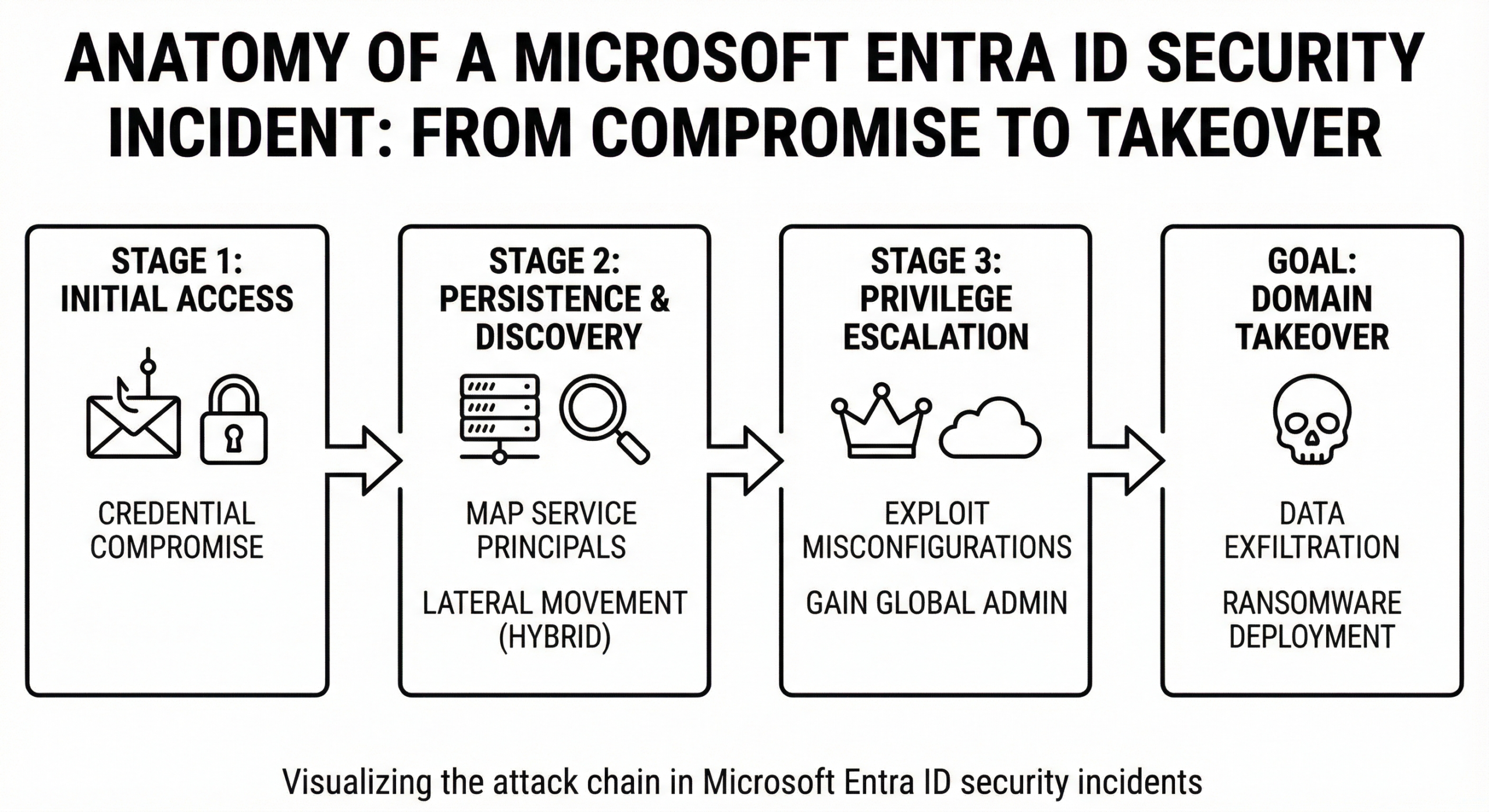
The cloud security kill chain in Entra ID environments typically follows this flow:
- Initial Access: Phishing, Password Spraying, or Token Theft.
- Persistence: Registering a rogue device or adding a secondary OAuth app.
- Lateral Movement: Moving from on-prem AD to Cloud via Azure AD Connect (now Entra Connect).
Alt Text: Attack kill chain for Microsoft Entra ID Security Incidents
Key Points
- Breaches often start with low-privilege accounts.
- Attackers dwell in the environment to map out Service Principals.
- Microsoft Entra ID security incidents are rarely isolated; they span hybrid environments.
FAQ: Anatomy of a Breach
Q: How long do attackers stay undetected in Entra ID?
A: The average dwell time can be over 200 days without proper signaling and logging tools like Microsoft Sentinel.
Q: Can MFA prevent all initial access?
A: Not all. Token theft and "AiTM" (Adversary-in-the-Middle) attacks can bypass standard MFA.
Privilege Escalation Exposed: From User to Admin in Minutes
Once inside, the goal is always "up." Privilege escalation is the art of turning a standard user into a Global Administrator. In hybrid identity environments, this is often achieved by exploiting the synchronization bridge.
Deep Dive into "Pass-the-Hash" and Synced Risks
In a hybrid setup, if an attacker compromises the on-premises Active Directory server running Entra Connect, they can extract the MSOL account credentials. This account has high privileges to replicate data to the cloud. Using a technique similar to "Pass-the-Hash," an attacker can manipulate the immutable ID of objects, effectively becoming any user in the cloud—including a Global Admin.
Live Demonstration: Misconfigured Service Accounts
Many Microsoft Entra ID security incidents stem from "App Registrations" that are over-privileged. Developers often grant `Directory.ReadWrite.All` to an application to make it work quickly. If the client secret for that app is hardcoded in a script on a public GitHub repo, an attacker can use it to create their own Admin account.
Warning: Always audit your Service Principals. A bot account effectively has the same power as a human user but doesn't sleep.
Key Points
- On-prem security directly impacts Cloud security in hybrid setups.
- Service Principals are a major blind spot for privilege escalation.
- Role-Based Access Control (RBAC) must be strictly enforced.
FAQ: Privilege Escalation
Q: What is the most dangerous permission in Entra ID?
A: `RoleManagement.ReadWrite.Directory` is critical, as it allows the principal to assign administrator roles to itself.
Q: How do I stop on-prem attacks moving to cloud?
A: Treat your Entra Connect server as a Tier 0 asset (highest security level).
Credential Stuffing & Phishing: Your Users, Their Weakest Link
Despite sophisticated backend defenses, the user remains the primary target. Credential stuffing involves attackers using millions of username/password pairs dumped from other breaches against your Microsoft Entra ID login portal.
Impact of Large-Scale Credential Stuffing
Attackers use botnets to spray passwords against thousands of tenants simultaneously. If you do not have "Smart Lockout" configured correctly in Azure, this can lead to legitimate users being locked out (DoS) or attackers successfully guessing a weak password.
Sophisticated Phishing: AiTM
Traditional phishing pages steal passwords. Modern AiTM (Adversary-in-the-Middle) phishing proxies the entire authentication session. The user inputs their credentials and their MFA code into the fake site. The attacker's server forwards this to Microsoft, gets the session cookie, and keeps it. They are now logged in *as* the user, bypassing MFA completely.
Alt Text: Phishing workflow in Microsoft Entra ID Security Incidents
Key Points
- Password reuse makes credential stuffing effective.
- Standard OTP (One Time Password) MFA is vulnerable to phishing.
- FIDO2 keys and Certificate-Based Authentication are phishing-resistant.
FAQ: Credential Attacks
Q: Does changing passwords frequently help?
A: NIST guidelines now suggest *not* forcing rotation unless a breach is suspected, as it leads to weaker passwords.
Fortifying Your Defenses: Proactive Entra ID Security Strategies
To prevent Microsoft Entra ID security incidents, we must move from reactive to proactive. This involves leveraging the full suite of Microsoft's identity security tools.
Beyond MFA: Conditional Access Policies
MFA is just the baseline. Conditional Access allows you to create "If/Then" statements for access. For example: "IF a user is logging in from an unknown country AND the device is not compliant, THEN block access."
The Power of Identity Protection
Entra ID Identity Protection uses machine learning to assign a "Risk Score" to every sign-in.
- Sign-in Risk: Real-time (e.g., impossible travel, anonymous IP).
- User Risk: Offline (e.g., leaked credentials found on the dark web).
Configuring policies to automatically force a password reset for high-risk users is a game-changer.
Key Points
- Use Conditional Access to enforce Zero Trust.
- Automate remediation with Identity Protection risk policies.
- Disable Legacy Authentication (IMAP/POP3) immediately.
Future-Proofing Your Entra ID: Staying Ahead of the Threat
Looking toward 2026, the threat landscape is evolving. AI-driven attacks will automate the discovery of vulnerabilities. To stay ahead, organizations must integrate Entra ID with SIEM and SOAR solutions like Microsoft Sentinel for automated response.
Emerging Threats
Expect to see "Deepfake" vishing (voice phishing) targeting helpdesks to reset MFA methods. Biometric identity verification will become standard for high-privilege access recovery.
Key Points
- Integrate Identity logs with a SIEM.
- Prepare for AI-driven social engineering.
- Conduct quarterly "Red Team" drills against your Identity infrastructure.
Troubleshooting with PowerShell & Graph API
To actively hunt for the vulnerabilities discussed above, you need to get your hands dirty with PowerShell and Microsoft Graph.
1. Audit Global Administrators (PowerShell)
This script helps you identify who holds the keys to the kingdom. Run this weekly.
# Connect to Microsoft Entra ID
Connect-MgGraph -Scopes "RoleManagement.Read.Directory", "User.Read.All"

# Get the Global Administrator Role definition
$role = Get-MgDirectoryRole | Where-Object {$_.DisplayName -eq "Global Administrator"}

# Get members of the role
$members = Get-MgDirectoryRoleMember -DirectoryRoleId $role.Id

Write-Host "Current Global Administrators:" -ForegroundColor Cyan
foreach ($member in $members) {
    # Resolve the user object to get the name
    $user = Get-MgUser -UserId $member.Id
    Write-Host "$($user.DisplayName) - $($user.UserPrincipalName)"
}
2. Detect Risky Sign-ins (Microsoft Graph API)
You can use the Graph Explorer to query risky sign-ins directly. This is crucial for forensic analysis of Microsoft Entra ID security incidents.
Method: GET
Endpoint: https://graph.microsoft.com/v1.0/identityProtection/riskyServicePrincipals
PowerShell version for automation:
# Script to fetch Risky Sign-ins
Connect-MgGraph -Scopes "IdentityRiskyUser.Read.All"

$riskyUsers = Get-MgRiskyUser -Filter "riskLevel eq 'high'"
if ($riskyUsers) {
    Write-Host "HIGH RISK USERS DETECTED:" -ForegroundColor Red
    $riskyUsers | Select-Object UserDisplayName, RiskLevel, RiskDetail, RiskLastUpdatedDateTime | Format-Table
} else {
    Write-Host "No high-risk users detected." -ForegroundColor Green
}
3. Check for Legacy Authentication Usage
Legacy auth is a common entry point. Use this KQL query in your Log Analytics/Sentinel workspace:
SigninLogs
| where TimeGenerated > ago(30d)
| where ClientAppUsed !in ("Browser", "Mobile Apps and Desktop clients")
| summarize count() by UserPrincipalName, ClientAppUsed, AppDisplayName
Key Points for Troubleshooting
- Use
Connect-MgGraph as the AzureAD module is being deprecated.
- Monitor the "Sign-in Logs" and "Audit Logs" daily.
- Automate these checks using Azure Automation Runbooks.
FAQ: Technical Troubleshooting
Q: Why can't I run these scripts?
A: Ensure you have the Microsoft Graph PowerShell SDK installed and appropriate permissions (e.g., Global Reader).
Q: Where can I find official documentation?
A: Visit the Microsoft Entra documentation for the latest cmdlets.
Conclusion
Microsoft Entra ID security incidents are inevitable, but catastrophic damage is not. By understanding the attacker's anatomy, auditing your privileges, and deploying robust scripts, you can turn your Identity Provider into a fortress. Don't wait for the breach to happen.
JSON Template: Block Legacy Authentication for Microsoft Entra ID
Conditional Access JSON Template: Block Legacy Auth
This JSON object targets clients that do not support modern authentication (like older Office clients, POP3, IMAP, and SMTP). It is configured for Report-Only mode.
ACTION REQUIRED: Replace "YOUR_EMERGENCY_ACCOUNT_ID_HERE" in the JSON below with the Object ID of your Break Glass user or group to prevent lockout.
The JSON Template
{
    "displayName": "Global - Block Legacy Authentication (Report Only)",
    "state": "reportOnly",
    "conditions": {
        "clientAppTypes": [
            "exchangeActiveSync",
            "other"
        ],
        "applications": {
            "includeApplications": [
                "All"
            ]
        },
        "users": {
            "includeUsers": [
                "All"
            ],
            "excludeUsers": [
                "YOUR_EMERGENCY_ACCOUNT_ID_HERE",
                "YOUR_CURRENT_ADMIN_ID_HERE"
            ]
        },
        "locations": null,
        "deviceStates": null
    },
    "grantControls": {
        "operator": "OR",
        "builtInControls": [
            "block"
        ],
        "customAuthenticationFactors": [],
        "termsOfUse": []
    }
}
How to Deploy This Template
Option 1: Using Microsoft Graph Explorer (Quickest)
- Go to Microsoft Graph Explorer and sign in.
- Ensure you have the permission
Policy.ReadWrite.ConditionalAccess consented.
- Change the HTTP method to POST.
- Enter the URL:
https://graph.microsoft.com/v1.0/identity/conditionalAccess/policies
- Paste the JSON above (with your exclusions updated) into the Request Body.
- Click Run Query.
Option 2: Using PowerShell (Automation Ready)
If you prefer to deploy via script, save the JSON above as BlockLegacyAuth.json and run this script:
# Connect to Microsoft Graph
Connect-MgGraph -Scopes "Policy.ReadWrite.ConditionalAccess"

# Read the JSON file content
$jsonPath = ".\BlockLegacyAuth.json"
$body = Get-Content -Path $jsonPath -Raw

# Deploy the Policy
Invoke-MgGraphRequest -Method POST `
    -Uri "https://graph.microsoft.com/v1.0/identity/conditionalAccess/policies" `
    -Body $body -ContentType "application/json"

Write-Host "Policy created successfully in Report-Only mode."
Key Points & Configuration Details
- clientAppTypes: We target
exchangeActiveSync and other. "Other" includes older mail protocols like IMAP, POP, SMTP, and older Office clients that don't support MFA.
- state: Set to
reportOnly. Check the "Sign-in Logs" > "Conditional Access" tab to see the impact before changing this to enabled.
- excludeUsers: Never apply a block policy to "All Users" without excluding at least one emergency account.
Next Steps
Once you have imported this policy, monitor it for 1-2 weeks. Use the Conditional Access Insights and Reporting workbook in Azure Monitor to visualize which legitimate users are still using legacy apps.